

92% of online shoppers prefer to buy in their local currency. 33% will bail on a cart priced only in USD if they're not US-based. If your Shopify store ships internationally and still shows everyone the same currency, you're leaving money on the table.
But the moment you go looking for "Shopify multi-currency," the picture gets confusing fast. Shopify Payments multi-currency. Shopify Markets. Managed Markets (formerly Markets Pro). Third-party currency apps. Four overlapping things, all sometimes called the same thing.
This guide untangles all of it. What "multi-currency" actually means on Shopify in 2026, how to turn it on in five clicks, what the fees really are (including the April 2026 update most guides haven't caught), and the gotchas that don't show up until after you've launched.
Hear what AI support calls sound like for your store. Just paste your Shopify URL and get sample calls in under 20 seconds, no email required. Listen to demo calls for my store.
What "Shopify multi-currency" actually means in 2026
Here's the source of most confusion: "Shopify multi-currency" is a term that means four different things depending on who you ask.
Shopify Payments is the payment gateway. It's the prerequisite for any native multi-currency. You can't do real local-currency checkout without it.
Shopify Markets is the localization layer. Free, included on every plan. Settings, Markets. It's where you pick which countries you sell to, what currencies they see, what language the storefront uses, and what your market-specific pricing looks like. According to the Shopify Help Center, Markets is available on Starter, Basic, Grow, Advanced, and Plus.
Managed Markets (formerly Markets Pro) is the paid upgrade. It adds duties and taxes shown at checkout, fraud protection, exchange rate guarantee, and a fulfillment partnership. Best for stores doing real cross-border volume that don't want to handle DDP logistics in-house.
Third-party currency apps like GeoTargetly or Currency Converter Plus are useful when you're not on Shopify Payments, or when you want geo controls Markets doesn't give you (B2B-only currency switching, city-level detection, custom redirects).
Quick history: the original "Shopify Payments Multi-Currency" feature launched in 2018 and was folded into Shopify Markets in 2022. The old name still floats around in documentation, but the surface is now Markets.
| Option | Cost | Checkout in local currency | Setup time |
|---|---|---|---|
| Shopify Payments + Markets | Built into plan | Yes (where Shopify Payments operates) | Under 30 min |
| Managed Markets | Per-transaction fees | Yes, plus duties/taxes shown at checkout | A few hours |
| Third-party app | $10-50/mo per app | Display only (no checkout currency change) | Under 30 min |
| Multiple Shopify stores | Cost of each plan | Yes (each store is independent) | Days, plus ongoing ops |
If you're early in international and want the cleanest path: Shopify Payments + Markets. That's what 80% of stores end up running. The deeper conversation about whether to graduate to Managed Markets or split into multiple stores comes later, once volume justifies it. For more on the broader landscape, the Shopify store statistics post has the context.
Why multi-currency actually moves the needle
The stats here are old but they keep showing up because they keep being true.
According to the Shopify Enterprise blog, 92% of shoppers prefer to buy in their local currency, and 33% will abandon a cart priced only in USD. CSA Research's own work puts the native-currency preference at 76%.
Brands selling in 25+ currencies grow 25% faster than single-currency stores. That's a Shopify number, but the directional truth holds: more currencies, more conversion.
A few real examples worth the look:
- Passenger (UK apparel brand): international revenue grew from 1% to 40% of total in two years after enabling Shopify Markets and localizing currencies.
- Orlebar Brown (luxury menswear): basket-to-checkout conversions jumped 66% after switching to Shopify Payments with local-currency checkout. Checkout-related complaints dropped to near zero.
One caveat. The lift assumes you're already shipping internationally. If you turn on multi-currency but don't sort out international shipping, duties, and post-sale support, you've just moved the friction from one place to another. The conversion gain on the storefront gets eaten by refund requests when packages don't show up. The full picture matters. See our take on ecommerce cart abandonment statistics for the broader pattern.
How to set up multi-currency on Shopify (step-by-step)
The actual setup is fast. The hard part is making sure it works after you turn it on. Here's the order:
Step 1: Activate Shopify Payments. Go to Settings, Payments. Enable Shopify Payments. Your country needs to be in the eligible list. If you're already running Shopify Payments, skip this.
Step 2: Go to Settings, Markets. You'll see a default market for your home country, plus an International catch-all market. Both are already there.
Step 3: Add a market. Click "Add market" if you want a region-specific setup (Europe, UK, Australia). Pick the countries that belong to it. Or just edit the existing International market if you want one global bucket.
Step 4: Enable currencies for that market. Inside the market, open Products and pricing, then Currencies. Enable the currencies you want customers in that market to see. Shopify Payments supports over 130 currencies for display.
Step 5: Pick automatic or manual exchange rates. Default is automatic. Shopify pulls market rates daily and adds the conversion fee into the displayed price. We'll cover when manual makes sense in the next section.
Step 6: Turn on price rounding. Same screen. Pick "Round to nearest 0.95" or "Round to nearest whole number" depending on the currency. This stops your German prices from showing up as €18.43.
Step 7: Test with a VPN. Set your browser location to that market and walk through the full purchase flow. Storefront price, cart, checkout. If anything reverts to your base currency at the cart, you have a theme or app issue to fix before launch.
Watch-out: even though Shopify supports 130+ currencies for display, checkout currency is only available where Shopify Payments itself operates. If a customer is in a region Shopify Payments doesn't cover, they'll see local prices on the storefront but pay in your base currency at checkout. This trips up a lot of merchants.
If you're on Shopify and want to see what AI phone support looks like for your store, Ringly.io gets Seth answering your calls in about three minutes. Try it free for 14 days.
What multi-currency actually costs (the real fee math)
The headline number you'll hear is 1.5% or 2%. Here's what's actually going on.
When a customer pays in a currency that's not your store's base currency, Shopify Payments converts that payment back to your default currency before paying you out. The conversion fee covers that. The published rates from the Shopify Help Center are:
- United States: 1.5%
- Most other regions: 2.0%
This fee is on top of normal Shopify Payments processing fees, not instead of them.
The April 6, 2026 update most guides missed. Before April 6, the conversion fee was calculated on the net order amount after Shopify Payments fees were already deducted. So the effective rate ended up slightly lower than the stated 1.5% or 2%. Confusing, but it leaned in your favor by a few cents.
After April 6, the conversion fee is now calculated on the gross order amount, before any deductions. The stated rate now matches the actual rate exactly.
Worked example using the new math. A $50 USD product sold to a customer in Germany. Mid-market USD-to-EUR rate of 0.92. US conversion fee of 1.5%.
$50 × 0.92 × 1.015 = €46.69
That's what the customer sees on the storefront. Of that, $0.75 goes to the conversion fee (1.5% of the $50 gross). The rest goes through normal Shopify Payments processing.
Is the 1.5-2% worth it? In almost every case, yes. A 66% basket-to-checkout lift (Orlebar Brown's number) covers a 2% fee dozens of times over. The fee is a real cost. The conversion lift is a bigger gain.
Automatic vs. manual exchange rates (and which one to pick)
Shopify gives you two options inside Markets.
Automatic conversion is the default. Shopify pulls the daily market rate, applies your conversion fee, and shows the result. Set it and forget it. The right pick for almost everyone.
Manual conversion lets you set a fixed rate per market (you can't set it on your primary market). Prices stay stable, which is useful if your margin is tight or if you want round prices in each market. Setting a 1.00 USD-to-EUR rate so €49 always shows up as €49 has a cleaner feel than letting the daily market move it.
The risk with manual is drift. You set 1.00 in January. By June the market is at 0.88, and you're effectively giving every European customer a 12% discount you didn't budget for. The Shopify Help Center notes that this risk applies during manual payment captures, refunds, and chargebacks too.
A middle path that works well: use automatic conversion for the base price math, then use Markets' "Manage pricing" to override specific product prices per market. €49 firm, no matter what the rate does.
Quick decision rule:
- Use automatic if you're under five international markets and you want simplicity.
- Use manual if you're scaling international past 20% of revenue and predictable pricing matters for margin reporting.
- Use the middle path if you have hero products you want priced cleanly in each market.
Rounding rules (the small detail that makes prices look professional)
A $19.99 product converted to EUR can show up as €18.43. Or €18.37. Or €18.51. Looks amateur.
Shopify's rounding rules fix this in 30 seconds. Settings, Markets, pick the market, Currency, Price rounding. Pick the most common ending for that currency.
Shopify picks defaults that make sense per currency. USD and EUR usually round to .99. JPY to whole numbers. GBP to .99 or .95. According to the Shopify rounding docs, you can't customize beyond Shopify's defaults, but the defaults are right for most cases.
Apply it across every market you sell into. The setting is per-market, so don't forget to flip it on for each one.
One catch worth knowing. Percentage discounts can still produce weird converted numbers (10% off €46.69 gives you €42.02). If you care about clean discount pricing, run promos at the store level in your default currency and let the math be what it is. Or set per-market discount amounts manually if you're on Shopify Plus.
Multi-currency payouts (when Advanced or Plus pays off)
Default behavior on Basic and Grow plans: every foreign-currency sale gets converted back to your domestic currency before payout. You pay the conversion fee once, you receive one currency in your bank account.
Multi-currency payouts let you skip that conversion. According to the Shopify Help Center, this feature is only available on the Advanced or Shopify Plus plans, and only in eligible regions.
What you can do:
- Add up to 8 bank accounts in different currencies (one bank account per currency)
- Receive payouts in that currency directly, no round-trip conversion
- Skip the conversion fee on those payouts (your domestic-currency payouts are free; non-domestic ones carry a payout fee)
Payout fees on non-domestic currencies:
| Plan | Global | Canada |
|---|---|---|
| Advanced | 1.5% | 1.5% |
| Shopify Plus | 1% | 1.25% |
Eligible regions: most of the EU, plus Australia, Canada, Hong Kong, Singapore, the UK, and the UAE (Plus only).
When it's worth it: roughly when you're doing $50K/yr or more in a single non-domestic currency. Below that, the plan upgrade costs more than the conversion fees you save.
The gotchas nobody documents
These are the issues that show up in the Shopify Community forums repeatedly. None of them are dealbreakers, but each one will bite you if you don't know about them.
Discount codes break for international customers
Fixed-amount discounts ($10 off) are stored in your default currency. At checkout they get converted at the current rate. A $10 off code on a €58 cart shows up as roughly €9.42 off. Looks weird and inconsistent.
Percentage codes (10% off) work cleanly across all currencies. Use percentage codes for any international promo. If you absolutely need fixed-amount codes, set them per-market manually.
Cart reverts to default currency on add-to-cart
This is the most reported complaint on the Shopify Community. Geolocation works, the customer sees their local currency on the product page, then they add to cart and bam, base currency.
Almost always a third-party app issue. Anything that intercepts the cart button (custom add-to-cart, sticky carts, AJAX cart drawers, some checkout bundle apps) can ignore the Markets currency setting. Test every revenue-touching app with a VPN before launch. If one breaks multi-currency, replace it.
Refund timing risk
When you refund an order, the conversion happens at the rate when the refund processes, not the rate when the order was placed. Markets move. You can end up refunding slightly more or less than you collected.
For most stores the gap is small enough to not matter. If you sell high-ticket items, it adds up. The mitigation is to refund quickly (close to order time) so the rates haven't moved much.
Non-Shopify-Payments gateways force base currency at checkout
If you use PayPal, non-Shopify Stripe, or a regional gateway, customers see local prices on the storefront but pay in your base currency at checkout. This is the single biggest source of merchant confusion in this space.
The fix is straightforward: process payments through Shopify Payments wherever you can, and use additional gateways only as fallbacks for regions Shopify Payments doesn't cover.
Manual rate drift
If you went with manual rates, set a calendar reminder to check them monthly. We've seen stores lose 5-8% margin in a quarter because the rate moved and nobody noticed.
Hreflang for SEO
If you're using subfolders or separate domains per market, set hreflang tags properly. Otherwise Google sees four versions of your homepage and decides for you which one ranks in which country (usually wrong). See our Shopify SEO guide for the implementation. If you're not familiar with the broader picture, ecommerce SEO covers the basics.
The support cost of going global (the part most guides skip)
The moment you turn on multi-currency, you've signed up to handle international customers post-sale. That's where the operational reality bites.
The questions you'll start getting:
- "Where's my order? I paid €46.69, your tracking shows GBP."
- "I want to return this, can I get a refund in CAD?"
- "Your AUD price doesn't match my card statement."
- "The package never arrived, your support is closed when I'm awake."
Email handles some of it. Live chat handles more. Phone is where it gets expensive fast. International calls, time zones, language barriers, and a customer who was already a little confused by the currency now talking to a support agent who's two coffees and four hours into their shift.
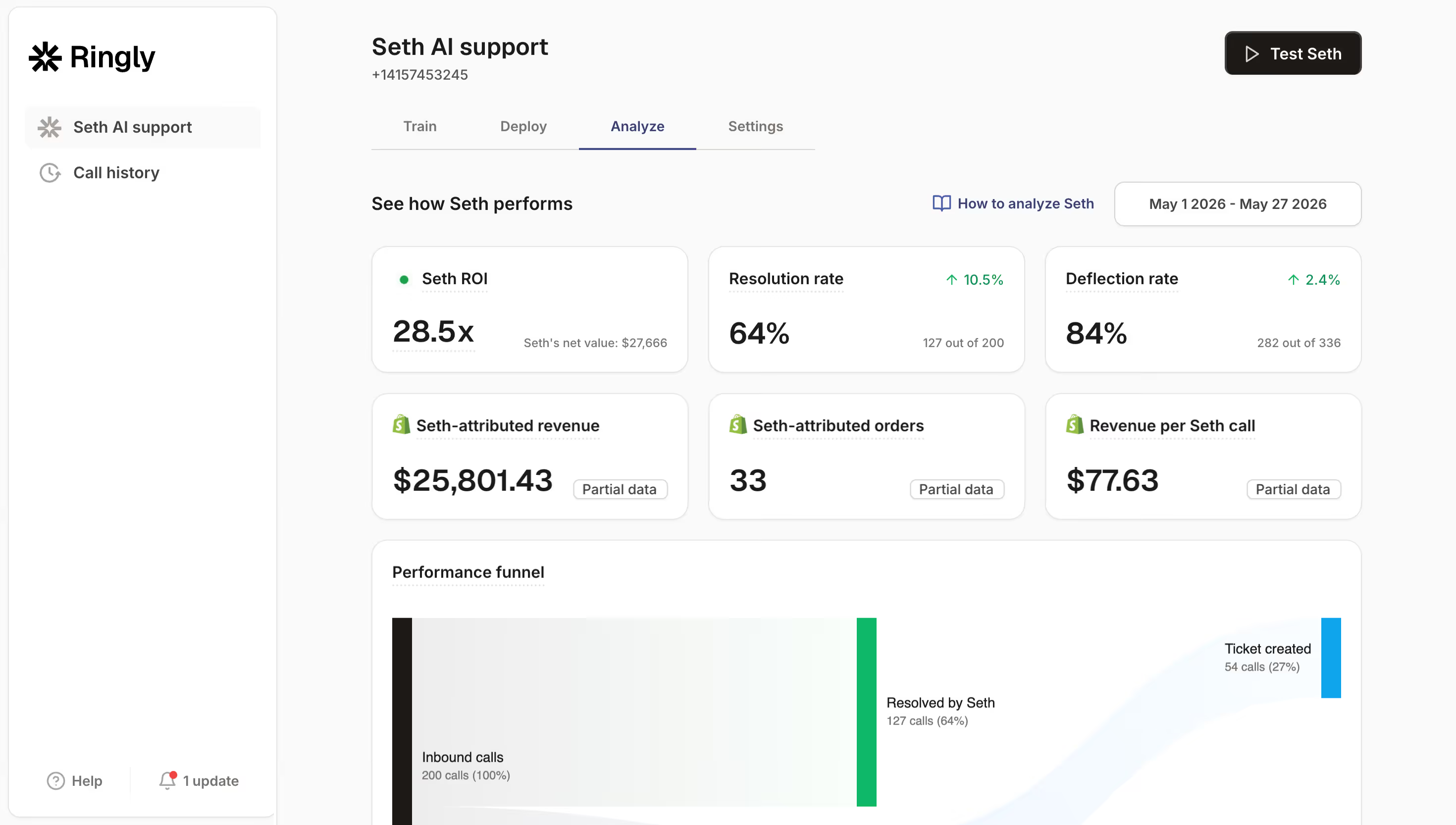
Ringly.io is AI phone support for Shopify brands. The AI answers inbound calls 24/7 in 40 languages, finds orders in your Shopify store, processes returns and exchanges, answers product questions from your knowledge base, and rescues abandoned carts via outbound follow-up. Across 50+ brands, the AI resolves 73% of calls autonomously at roughly $0.42 per resolved call.
Why this matters specifically for multi-currency stores: the customer in Germany calling at 3am their time about a EUR order doesn't need to wait until your US team logs on. The AI handles it in German. If it needs to hand off, it escalates cleanly to Gorgias, Richpanel, Reamaze, or whatever helpdesk you already run. You keep your current phone number and workflows. We've covered this pattern in more depth in our ecommerce phone support and Shopify voice agents posts.
Pricing: Grow at $349/mo (1,000 minutes, around 500 calls), Pro at $799/mo (2,500 minutes, around 1,250 calls), Enterprise custom for high-volume. See the full Ringly pricing page for the breakdown. 14-day free trial on Pro. Live in under an hour. 65% resolution guarantee: if the AI resolves under 65% of your calls in 90 days, we refund the last 3 months of subscription fees.
The pitch isn't complicated. You went global to grow revenue. Don't let post-sale support eat the lift.
Try Ringly.io free for 14 days and get Seth answering calls in under three minutes. For more context on the use case, see our deeper write-up on AI receptionist for ecommerce and 24/7 ecommerce phone support.
A realistic launch checklist
If you're doing this in the next week, here's the order:
- Turn on Shopify Payments. Confirm country eligibility.
- Set up your markets (one per region, or use the default International market).
- Enable currencies per market. Pick the top 5-8 you actually want to support, not all 130.
- Set automatic exchange rates. Add manual product overrides for hero SKUs if needed.
- Turn on price rounding for each market.
- Switch all promotional discounts to percentage-based (or set per-market fixed amounts manually if on Plus).
- Test the full flow with a VPN from three different countries. Storefront, cart, checkout.
- Add hreflang tags if you're using subfolders or separate domains.
- Plan for post-sale support: helpdesk language coverage, return policies in local currency, and how phone calls get answered.
- Launch quietly. Monitor checkout completion rate per market for two weeks before scaling ad spend.
For the broader picture on running international support, our take on Shopify customer service apps, ecommerce returns management, and WISMO calls is worth a look.
Frequently asked questions
Do I need Shopify Payments to enable multi-currency?
Yes. Native multi-currency on Shopify requires Shopify Payments. Third-party apps can show local prices on the storefront without it, but customers will still pay in your base currency at checkout.
What does Shopify charge for currency conversion?
1.5% in the United States, 2% in most other regions. As of April 6, 2026, the fee is calculated on the gross order amount, so the stated rate now matches the actual rate exactly. This is on top of normal Shopify Payments processing fees.
What's the difference between Shopify Markets and Managed Markets?
Shopify Markets is free and included on every plan. It covers currency, language, and market-specific pricing. Managed Markets (formerly Markets Pro) is the paid upgrade that adds duties and taxes shown at checkout, fraud protection, exchange rate guarantee, and fulfillment partnership.
Can I set my own exchange rates?
Yes, on any non-primary market. Open the market in Settings, Markets, then Currencies, and switch from automatic to manual. The risk is drift: you have to remember to update the rate when the market moves.
Will my discount codes work for international customers?
Percentage codes (10% off) work cleanly across all currencies. Fixed-amount codes ($10 off) get converted at checkout and can look weird (€9.42 off instead of a clean €10). Use percentage codes for international promos.
Do I need to be on Shopify Plus?
No. Multi-currency works on every plan from Basic up. Multi-currency payouts (multiple bank accounts in different currencies) require Advanced or Plus.
Why does my cart show the default currency after a customer adds an item?
Almost always a third-party app intercepting the cart button. Custom add-to-cart, sticky carts, AJAX drawers, and some bundle apps ignore the Markets currency setting. Test with a VPN, identify the offending app, replace it.
How does Ringly handle international phone support across currencies?
Ringly.io is AI phone support for Shopify brands. The AI answers calls 24/7 in 40 languages, pulls order data straight from your Shopify store (in whatever currency the order was placed), processes returns and exchanges, and handles abandoned cart follow-up. Across 50+ brands, it resolves 73% of calls autonomously at roughly $0.42 per resolved call.
The bottom line
Shopify multi-currency in 2026 is a five-click setup with a real conversion upside, a 1.5-2% fee that almost always pays for itself, and a handful of gotchas worth knowing before you launch.
Get the order of operations right: Shopify Payments first, then Markets, then currencies, then automatic rates, then rounding, then test. After that, the part most guides skip: figure out how international customers get supported post-sale, before you scale ad spend into new countries.
Start your free trial. Get Seth answering your international calls in under three minutes.