


Shopify Flow is a free automation app that watches your store for events and runs a chain of actions in response. It's built from triggers, conditions and actions, and Shopify describes it as a way to automate tasks and processes within your store and across your apps.
Hear what AI support calls sound like for your store. Just paste your Shopify URL and get sample calls in under 20 seconds, no email required. Listen to demo calls for my store.
What Shopify Flow is, in plain terms
Shopify describes Flow as "an ecommerce automation platform that you can use to automate tasks and processes within your store and across your apps" (Shopify Flow - Shopify Help Center). In practice, think of it as "when this happens, do that" rules.
If you're a support lead, the question to ask is who talks to the customer once a workflow fires. Map out the customer-facing part before you build the automation, not after.
How a workflow works: triggers, conditions and actions
- Trigger: the event that starts the workflow. Shopify defines triggers as "events that start a workflow" (Triggers in Shopify Flow).
- Condition: a check that's part of the workflow, alongside triggers and actions.
- Action: the step the workflow carries out once it has started.
A simple example: an order is created (trigger), the order total is over a threshold you set (condition), and Flow tags it for review (action).
One limit to plan around: Flow can't store data between workflow runs (What is Shopify Flow? - Mesa). Each run starts fresh, so don't expect it to remember what happened last time a customer was flagged.
Who can use it: plans, cost and install
Flow itself costs nothing. Shopify says it's a free app available on the Basic, Grow, Advanced, and Plus plans.
To get started, you install it first. Shopify's instructions say you must install the free Shopify Flow app from the Shopify App Store before you can build anything.
Here's how access breaks down by plan:
| Capability | Plan needed |
|---|---|
| Flow app | Basic, Grow, Advanced, Plus |
| Send HTTP request action | Grow, Advanced, Plus |
| Tasks from custom partner apps | Plus only |
Flow templates and examples worth starting with
Don't start from a blank canvas. Pick one small workflow and build it before you try anything bigger.
Here are the kinds of workflows worth building first:
- Flag risky or high-value orders: trigger on order creation, check a condition, tag the order so your team sees it.
- Alert your team internally: trigger on a problem event and notify the right person instead of waiting for a customer to complain.
- Delay then check: trigger on an order, use Wait, then check whether the order has moved before deciding what to do.
- Send an HTTP request: the Send HTTP request action needs the Grow, Advanced or Plus plan.
Start with one internal-only workflow. Get comfortable with the editor before you connect anything that touches customers. That way a mistake stays inside your team.
A good first build is small enough to explain in one sentence. If you can't say what the trigger is, what the condition checks and what the action does, the workflow is too big for a first attempt. Split it into two workflows and test each one on its own.
Flow building blocks at a glance
| Block | Type | What it does | Plan needed |
|---|---|---|---|
| Send HTTP request | Action | Waits for an HTTP response code | Grow, Advanced, Plus |
| Custom partner app tasks | Action | Tasks built by partner apps | Plus |
Send HTTP request and Wait: the two steps support teams care about
These two actions are where the real limits show up.
Send HTTP request
Shopify says stores on the Grow, Advanced, and Plus plans can use this action.
Two behaviors to design around:
- 30-second timeout: after sending, Flow waits for a maximum of 30 seconds for an HTTP response code (Send HTTP request - Shopify Flow).
- Retries on client errors: when the response code signals a client error, Flow retries.
So the receiving system should answer fast, even if it does the real work afterward.
Wait
Wait delays the next action or condition in a workflow until a set amount of time passes (Wait - Shopify Flow).
It has a ceiling: Wait delays actions or conditions for a maximum of 90 days per workflow. And if you deactivate or delete the workflow, active runs in waiting status are stopped.
Putting them together: a delayed order
Say an order hasn't shipped within the time you promised. The order is the trigger, a Wait step holds the workflow for the time you choose (up to 90 days), and a condition checks whether the order has moved. If it hasn't, the next action in the workflow runs.
Notice what that workflow produces: a tag, a flag or a message to another system. None of those answers a customer who is waiting on the line, so that part needs its own owner. Write down who owns the customer conversation at that point.
How to test and monitor a workflow
Build the workflow, then run it against a safe case before you turn it on for real traffic. Point HTTP requests at a test endpoint first so a mistake doesn't reach a live system.
Then watch it after launch:
- Check the trigger and condition: confirm the trigger fires when you expect and the condition matches the orders you intend.
- Watch the HTTP step: Flow waits at most 30 seconds for a response code, so keep the receiving system quick.
- Be careful with edits: deactivating a workflow stops runs that are waiting, so change live Wait workflows carefully.
- Start narrow: a condition that's too loose can fire on every order, so tighten it before you widen it.
- Re-check your plan: Send HTTP request needs Grow, Advanced or Plus, so confirm your plan covers every action before you rely on a workflow.
- Remember the memory limit: Flow can't store data between workflow runs, so a workflow shouldn't depend on what an earlier run did.
If you're comparing options for the phone side, AI order support for Shopify covers tools worth knowing, and AI automation for ecommerce shows where workflows like this fit in a bigger picture.
Where Flow stops and support starts
Flow is the trigger layer: triggers start workflows, and conditions and actions follow. Someone, or something, still has to talk to the person who is waiting.
That's why a delayed order is a good test case. A customer who calls about a late order needs an answer from something that can talk. If you want to understand why those calls pile up, strategies to reduce WISMO calls is a good next read.
How Ringly.io handles delayed-order calls on the phone
Ringly.io is AI phone support for Shopify brands. Through the Shopify connection, Seth recognizes the caller by phone number. With Gorgias connected, every Seth call lands as a ticket, and with Zendesk connected, calls that need a person arrive as tickets (see integrations). Twilio lets you import a phone number so Seth answers on it, and custom skills let Seth call an API during a call.
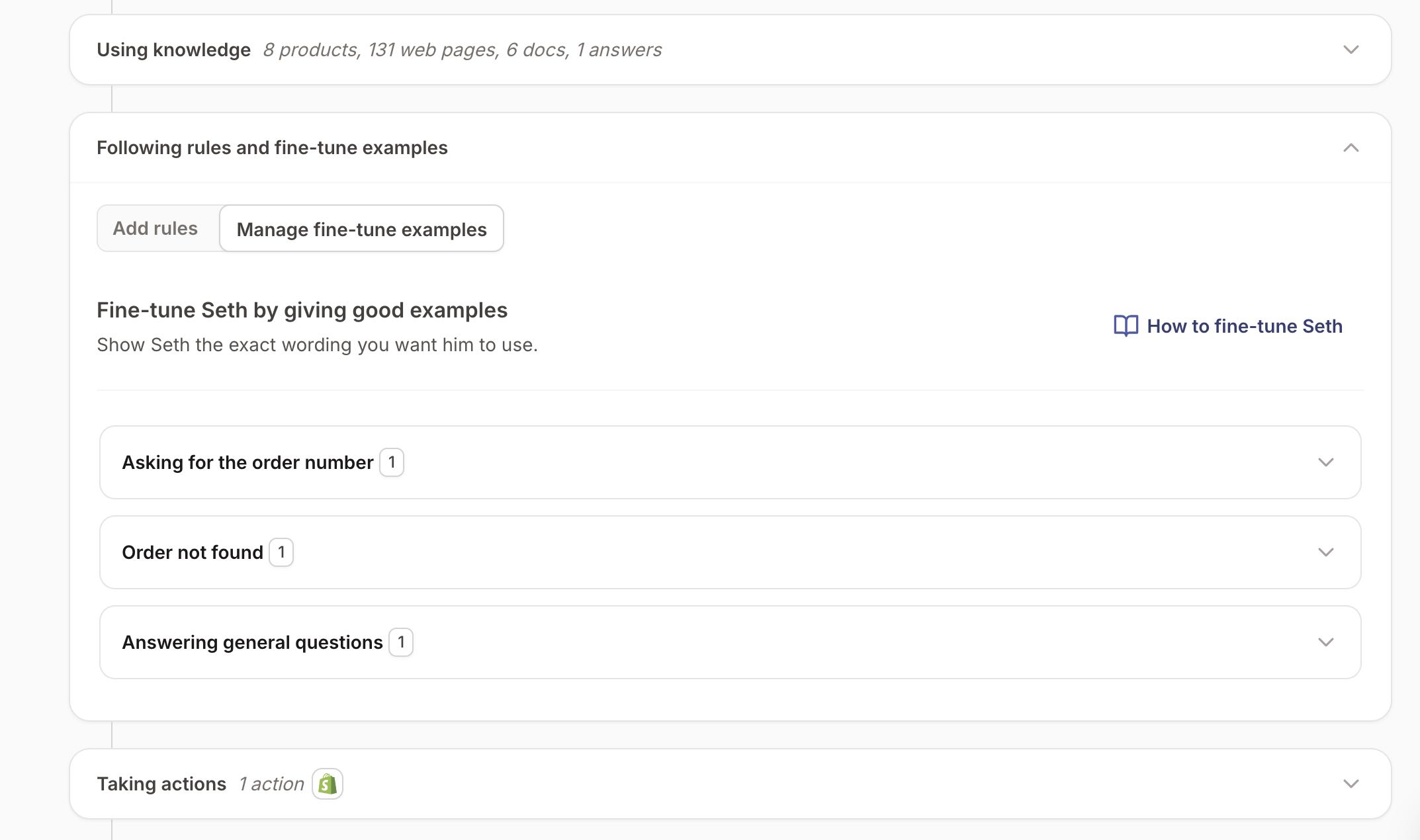
When a caller asks about a late order, Seth can look up the order in Shopify and answer with the carrier, delivery status, latest scan and estimated delivery date. If someone needs a human and Gorgias or Zendesk is connected, the call arrives in your helpdesk as a ticket with a summary and the full transcript. Escalation can also be set up as a transfer.
AI Coach is a chat assistant in the Seth dashboard that reads your settings and real calls and says what to fix first. Every change it suggests arrives as a card, and you choose Apply or Dismiss. Read how Coach works for the details.
Ringly.io charges per phone conversation, and the details are on the pricing page. For how order lookups work on a live call, see real-time order status from Shopify.
Frequently asked questions
What is Shopify Flow?
It's Shopify's free automation app. It monitors your store for events and runs a sequence of actions in response, built from triggers, conditions and actions. Shopify describes it as a platform for automating tasks and processes within your store and across your apps.
How do I access and set up Shopify Flow?
Install the free Shopify Flow app from the Shopify App Store. Shopify lists it as available on the Basic, Grow, Advanced and Plus plans.
How much does Shopify Flow cost?
The app itself is free on Basic, Grow, Advanced and Plus. Some actions carry plan requirements: Send HTTP request needs Grow or higher, and custom partner app tasks are Plus only.
Can Shopify Flow handle customer support on its own?
Shopify describes Flow as a platform for automating tasks and processes within your store and across your apps. Treat Flow as the trigger layer and pair it with something built for the phone if customers call. For a tool that handles the conversation, see Shopify AI call answering apps.
What are the main Flow limits to know?
Send HTTP request waits at most 30 seconds for a response, and Wait caps at 90 days per workflow. Flow also can't store data between workflow runs.
Those three limits are worth writing down before you build anything. Check each workflow you plan against them, and you'll catch most design problems early.
What happens to waiting runs if I deactivate a workflow?
If you deactivate or delete the workflow, active runs in waiting status are stopped. So change a live workflow that uses Wait carefully, and don't assume a paused delay will pick up where it left off.
Which Flow actions depend on my Shopify plan?
The Flow app itself is available on Basic, Grow, Advanced and Plus. Send HTTP request needs Grow, Advanced or Plus, and tasks from custom partner apps are Plus only, so check your plan before you design a workflow around either one.