

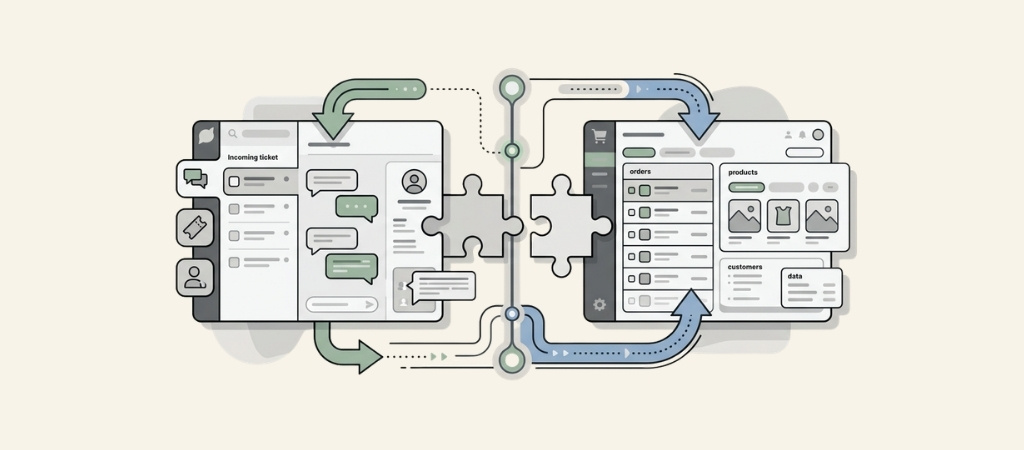
Connecting your support platform to your e-commerce store shouldn't require a computer science degree. Yet many Shopify merchants struggle to get their customer data flowing into Zendesk efficiently. The good news? The native Zendesk Shopify integration is straightforward to set up, and once running, it gives your support team instant access to order history, fulfillment status, and customer details without leaving the ticket view.
This guide walks you through exactly how to set up the Zendesk Shopify integration, what features you'll get, and when you might want to consider third-party alternatives for more advanced needs.
Editor's note: Want to hear some sample AI support calls made for your Shopify store?
- Just paste your store URL
- Get sample calls in under 20 seconds (no email required)
- Listen to demo calls for my store
What the Zendesk Shopify integration does
The native integration creates a bridge between your store and support platform. Here's what that actually means for your day-to-day operations.

Sidebar app for order visibility
The centerpiece of the integration is the sidebar app that appears inside every Zendesk ticket. When a customer emails about their order, your agents see the complete Shopify order history directly in the ticket sidebar. No tab switching. No asking customers for order numbers they've already provided.

The sidebar displays:
- Order history and current fulfillment status
- Shipping tracking information
- Customer profile details from Shopify
- Payment status and method
Process refunds and cancellations
For teams on eligible Zendesk plans, the integration goes beyond viewing data. Agents can process refunds and cancellations directly from the ticket sidebar. This eliminates the need to log into Shopify separately, which saves time and reduces errors from manual data entry.
Web Widget for storefront
The integration also supports adding Zendesk's Web Widget to your Shopify storefront. This gives customers access to live chat, self-service help articles, and contact forms without leaving your store. You can customize the widget appearance to match your brand.
Multi-store support
Running multiple Shopify storefronts? The integration supports connecting several stores to a single Zendesk account. This is useful for merchants operating in different regions or with separate brands under one corporate umbrella.
What you'll need before starting
Before diving into setup, make sure you have the prerequisites in place:
- Zendesk Support account on Team, Professional, or Enterprise plan (the integration does not work with the legacy Essential plan)
- Zendesk Chat subscription for some features like the Web Widget
- Shopify account with admin access
- Admin access to both platforms to authorize the connection
The Shopify integration is included with your Zendesk subscription at no additional cost, though you'll need the appropriate plan level to access all features.

Step-by-step Zendesk Shopify integration setup
Here's how to get the integration running. The whole process takes about 10-15 minutes.
Step 1: Install the Zendesk app from Shopify
Start in your Shopify admin. Navigate to the Shopify App Store and search for "Zendesk." Click Install and select which storefront you want to connect if you run multiple stores.

Step 2: Connect your Zendesk account
After installation, you'll be prompted to connect your Zendesk account. Enter your Zendesk subdomain (the part before ".zendesk.com" in your URL). The system will authenticate the connection and ask you to name your integration.

Step 3: Configure the sidebar app
Head to your Zendesk Admin Center. Navigate to the Shopify integration settings and enable the sidebar app. Turn on specific features like refunds and cancellations based on your team's needs and plan level. Save your configuration.

Step 4: Add Web Widget to Shopify (optional)
If you want chat and self-service on your storefront, enable the Web Widget in your integration settings. Then activate it in your Shopify Theme Apps Editor. You can customize colors, position, and which help center articles appear.

Step 5: Test the integration
Create a test ticket using an email address associated with a real Shopify order. Verify that order data appears in the sidebar. If you enabled refunds, test that workflow with a small test order to ensure permissions are set correctly.
Key features and benefits
Once configured, the integration delivers several concrete improvements to your support operation.
Unified customer view
Your agents see complete order history in one place. This matters because customers hate repeating information they've already provided. When an agent can see that a customer's order shipped yesterday and is currently out for delivery, they can answer "where's my order" questions instantly.
Faster resolution times
Processing common requests directly from tickets cuts handling time significantly. A refund that might take 3-4 minutes (logging into Shopify, finding the order, processing the refund, logging back into Zendesk to respond) becomes a 30-second action.
Improved customer experience
Agents with full context provide more personalized support. They can reference specific products, acknowledge shipping delays before the customer mentions them, and proactively offer solutions based on order history.
Scalable support operations
Handling multiple stores from one Zendesk instance creates consistent processes across channels. Your team learns one workflow instead of juggling different systems for different storefronts.

Limitations to know about
The native integration covers the basics well, but it has boundaries you should understand.
- Single Web Widget per store: You can only install one default brand Web Widget per Shopify store. If you need different widgets for different pages or customer segments, you'll need a workaround.
- Plan-dependent features: Refunds, cancellations, and some advanced features require specific Zendesk plans. The Team plan gets you the basics; Professional and Enterprise unlock more functionality.
- Legacy ticket fields: Some users report seeing legacy custom ticket fields from older integration versions. These can typically be ignored or hidden.
- Limited customization: The native integration offers limited customization of which data fields sync from Shopify. You get the standard order, customer, and shipping data, but custom Shopify fields may not transfer automatically.
Third-party alternatives for Zendesk Shopify integration
When the native integration falls short, several third-party solutions extend the functionality.
When to consider alternatives
Consider upgrading beyond the native integration if you need:
- Advanced commerce features like rapid re-ordering
- Custom data field mapping between platforms
- AI-powered automation for common requests
- Real-time event synchronization
agnoStack
agnoStack positions itself as the industry's leading Zendesk-Shopify connector. It adds advanced commerce features the native integration lacks.

Key capabilities include:
- Rapid re-order and direct order capture via CartCollab
- Advanced gift card and store credit management
- Multi-tender refunds across payment methods
- AI-powered support responses through ChatGPT integration
| Plan | Price | Minimum Billing | Key Features | Starter |
|---|---|---|---|---|
| $5/agent/month | $10/month | Basic order history, customer lookup | Professional | $19/agent/month |
| $95/month | Full order details, shipping status | Premium | $24/agent/month | $120/month |
| Multiple stores, AI features, refunds | Enterprise | $34/agent/month | $170/month | CartCollab, reporting, new order creation |
Zapier
Zapier takes a different approach, offering workflow automation between Shopify and Zendesk without requiring technical skills. It connects over 8,000 apps, making it useful if you want to trigger actions across multiple tools.

Popular workflows include:
- Creating Zendesk tickets when new orders come in
- Updating customer records when Shopify profiles change
- Tagging tickets based on order status
- Creating follow-up tickets for abandoned carts
| Plan | Price (Annual) |
|---|---|
| Tasks/Month | Key Features |
| Free | $0 |
| 100 | 2-step Zaps, unlimited Zaps |
| Professional | $19.99/month |
| 750+ | Multi-step Zaps, webhooks |
| Team | $69/month |
| 2,000+ | 25 users, shared Zaps |
| Enterprise | Custom |
| Custom | Unlimited users, advanced admin |
Knots.io
Knots.io focuses specifically on real-time event synchronization and Zendesk automation. Unlike general-purpose tools, it's built exclusively for the Zendesk ecosystem.
Features include:
- Real-time sync of orders, products, and customer data
- Customizable field mapping
- Dedicated abandoned cart app for recovery ticketing
- Automation-focused architecture
| Plan | Price |
|---|---|
| Tickets/Month | Key Features |
| Free | $0 |
| Unlimited (1 app) | Merge Tickets app only |
| Essentials | $269/month |
| 5,000 | 3 apps, automation audit |
| Power Suite | $899/month |
| 30,000 | 10 apps, implementation included |
| Enterprise | $1,900+/month |
| 75,000 | Unlimited apps, enhanced security |

Tips for getting the most from your integration
Once you're up and running, a few practices will help you maximize the value:
- Train agents on sidebar features: Many teams underutilize the sidebar app because agents don't know what actions are available. Create a quick reference guide.
- Set up macros for common requests: Build Zendesk macros that combine standard responses with sidebar actions for frequent scenarios like "order delayed" or "refund processed."
- Use tags to track integration tickets: Tag tickets that involve Shopify actions so you can report on volume and identify improvement opportunities.
- Review workflows quarterly: As your business grows, your integration needs may change. Regular reviews catch opportunities to automate more or adjust configurations.
Start improving your Shopify customer support today
The Zendesk Shopify integration gives your support team the context they need to resolve issues faster and provide more personalized service. For most merchants, the native integration handles the essentials well. If you need more advanced commerce features, tools like agnoStack, Zapier, or Knots.io extend the functionality significantly.
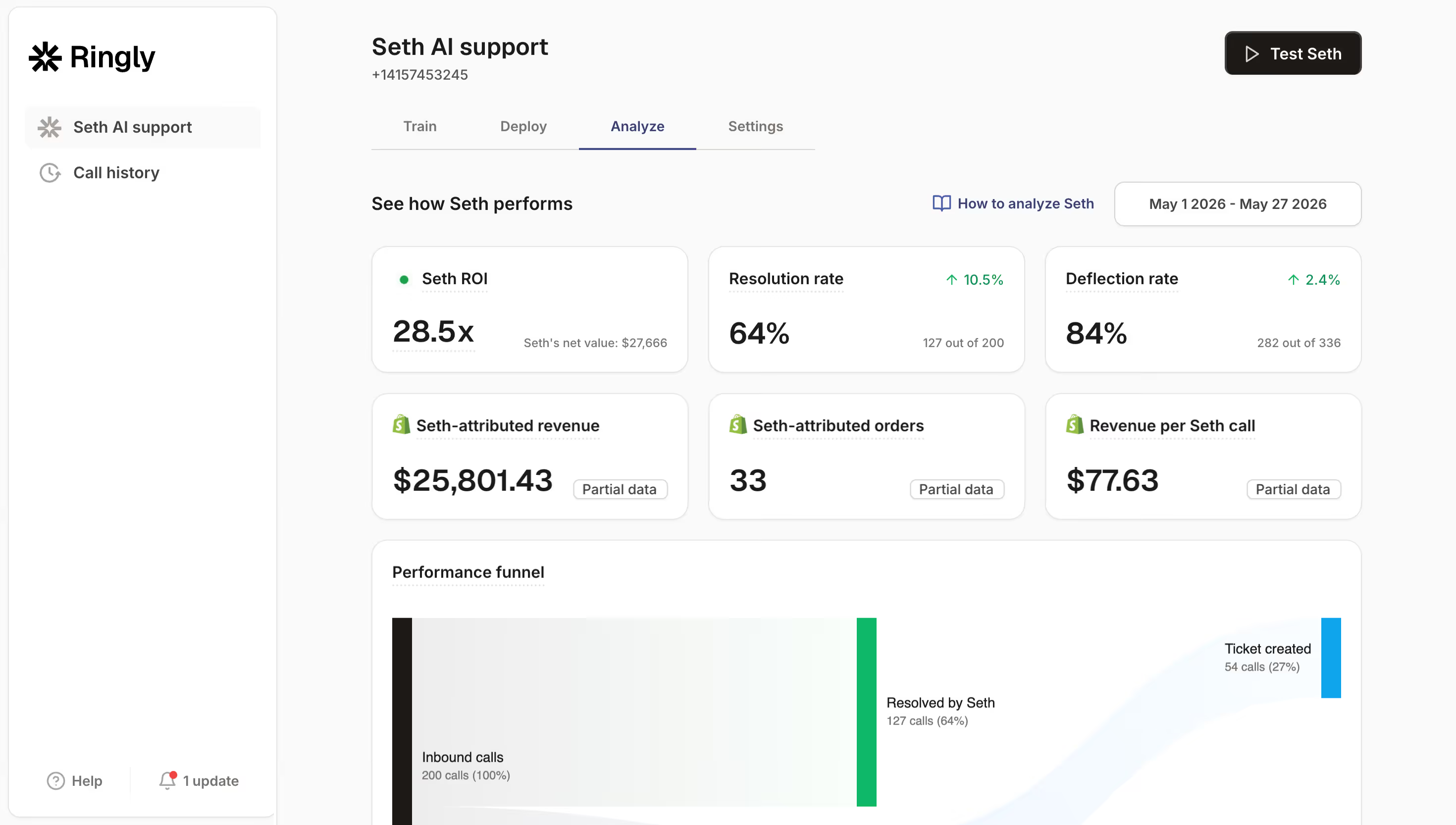
While you're optimizing your support stack, consider how you handle phone inquiries. Many Shopify merchants still rely on manual phone support, which creates bottlenecks during busy periods. At Ringly.io, we've built an AI phone agent called Seth that handles common Shopify support calls automatically. Seth looks up orders, processes returns, and answers FAQs, escalating only complex issues to your team. If phone support is part of your operation, you can try Seth free for 14 days and see how AI phone support fits alongside your Zendesk integration.
Frequently Asked Questions
Do I need a paid Zendesk plan to use the Zendesk Shopify integration?
Yes, the integration requires a Zendesk Support plan on Team, Professional, or Enterprise tiers. The legacy Essential plan does not support this integration. Some advanced features like refunds require higher-tier plans.
Can I connect multiple Shopify stores to one Zendesk account with the Zendesk Shopify integration?
Yes, the native integration supports multiple storefronts connected to a single Zendesk instance. This is useful for merchants operating regional stores or multiple brands under one corporate account.
Does the Zendesk Shopify integration support real-time order syncing?
The native integration pulls order data when a ticket is viewed or refreshed, but it does not push real-time updates for every order change. For true real-time synchronization, consider third-party alternatives like Knots.io.
Can I process refunds directly through the Zendesk Shopify integration?
Yes, but only on eligible Zendesk plans. The refund and cancellation features require specific plan levels. Check your Zendesk subscription details to confirm this feature is available to your team.
What data from Shopify appears in the Zendesk ticket sidebar?
The sidebar displays order history, fulfillment status, shipping tracking, customer profile details, and payment status. Custom Shopify fields may not appear automatically depending on your configuration.
Is there an additional cost for the Zendesk Shopify integration?
No, the native integration is included with your Zendesk subscription at no extra charge. However, you need the appropriate Zendesk plan level, and third-party alternatives like agnoStack or Zapier have their own pricing.