


Connecting your helpdesk to your e-commerce platform isn't just convenient. It's how you turn support from a cost center into a competitive advantage. When your support team can see order history, process refunds, and track shipments without switching tabs, customers get faster answers and your team works more efficiently.
Freshdesk and Shopify integrate natively, but there's a catch. Shopify changed how custom apps work in January 2026, and most guides you'll find online are now outdated. This guide walks you through the current setup process, what the integration actually does, and alternative connection methods if the native app doesn't fit your needs.
Editor's note: Want to hear some sample AI support calls made for your Shopify store?
- Just paste your store URL
- Get sample calls in under 20 seconds (no email required)
- Listen to demo calls for my store

What You'll Need
Before you start, make sure you have:
- A Freshdesk account with admin access
- A Shopify store where you have owner or staff permissions with app development access
- Access to the Shopify Dev Dashboard (this is the new requirement as of January 2026)
- About 15-20 minutes for setup
You don't need coding skills, but you will need to create a custom app in Shopify's developer environment. If that sounds intimidating, don't worry. The steps below are straightforward.
Step 1: Create a Custom App in Shopify Dev Dashboard
Shopify stopped allowing legacy custom app creation on January 1, 2026. Now all new Freshdesk integrations require creating an app through the Shopify Dev Dashboard.
Here's how to do it:
- Log into your Shopify admin panel and go to Settings > Apps > Develop apps
- Click "Create an app" and name it something like "Freshdesk Integration"
- Click "Configure Admin API scopes" and enable these permissions:
read_customers(to sync customer data)read_orders(to view order history)write_orders(to process cancellations and refunds)
- Save your changes and click "Install app" to add it to your store
- Once installed, you'll see an "API credentials" tab. Click it and copy the Client ID and Client Secret. You'll need these in the next step.

Important: Only store owners or staff with "Develop apps" permissions can complete this step. If you don't see the "Develop apps" option, you'll need to ask your store owner to either complete this step or grant you the necessary permissions.
Step 2: Install and Configure the Shopify App in Freshdesk
Now that your Shopify custom app is ready, you can connect it to Freshdesk.
- In Freshdesk, go to Admin > Apps > Get More Apps
- Search for "Shopify" and install the official Shopify app (it's free)
- Once installed, click "Configure" to open the settings
- Enter your Shopify store URL (the format is yourstore.myshopify.com)
- Paste the Client ID and Client Secret you copied from Step 1
- Choose which permissions you want to enable:
- View orders (recommended for all setups)
- Cancel orders (useful for fraud prevention)
- Refund orders (helpful for processing returns)
- Click "Authenticate" to verify the connection
- Save your settings

The app will test the connection automatically. If you see a green checkmark, you're connected. If you get an error, double-check your Client ID and Secret. Those are the most common culprits.
Step 3: Connect Additional Shopify Stores (Optional)
If you run multiple Shopify stores, you can connect them all to the same Freshdesk account. This is useful if you have separate stores for different regions or brands.
The process is similar to Step 2:
- Create a separate custom app for each additional store (following Step 1)
- In Freshdesk, go back to the Shopify app settings
- Click "Add another store"
- Enter the new store URL and the Client ID/Secret from that store's custom app
- Save and authenticate

There's no limit to how many stores you can connect, and each store's data stays separate. When viewing a ticket, agents will see which store the customer ordered from.
Key Features of the Freshdesk Shopify Integration
Once connected, here's what your support team gets:
Order visibility in tickets. When a customer emails support, the Shopify widget appears in the ticket sidebar showing their complete order history. Agents see order numbers, products purchased, payment status, and fulfillment status at a glance.
Order management without leaving Freshdesk. Agents can cancel orders and process refunds directly from the ticket view. This saves the back-and-forth of logging into Shopify separately.
Customer context at your fingertips. See shipping addresses, tracking numbers (with clickable links to carriers), and payment method details. When a customer asks "where's my order?" you have the answer immediately.
Canned responses with Shopify placeholders. Create templates that automatically pull in order details. For example, a template could say "Your order {{order.number}} has been shipped and should arrive by {{order.delivery_date}}."
Multi-store support. As mentioned above, you can connect unlimited Shopify stores and manage them all from one Freshdesk account.

Alternative Integration Methods
The native Freshdesk-Shopify app works well for most businesses, but it's not your only option. Here are three alternatives worth considering:
Zapier
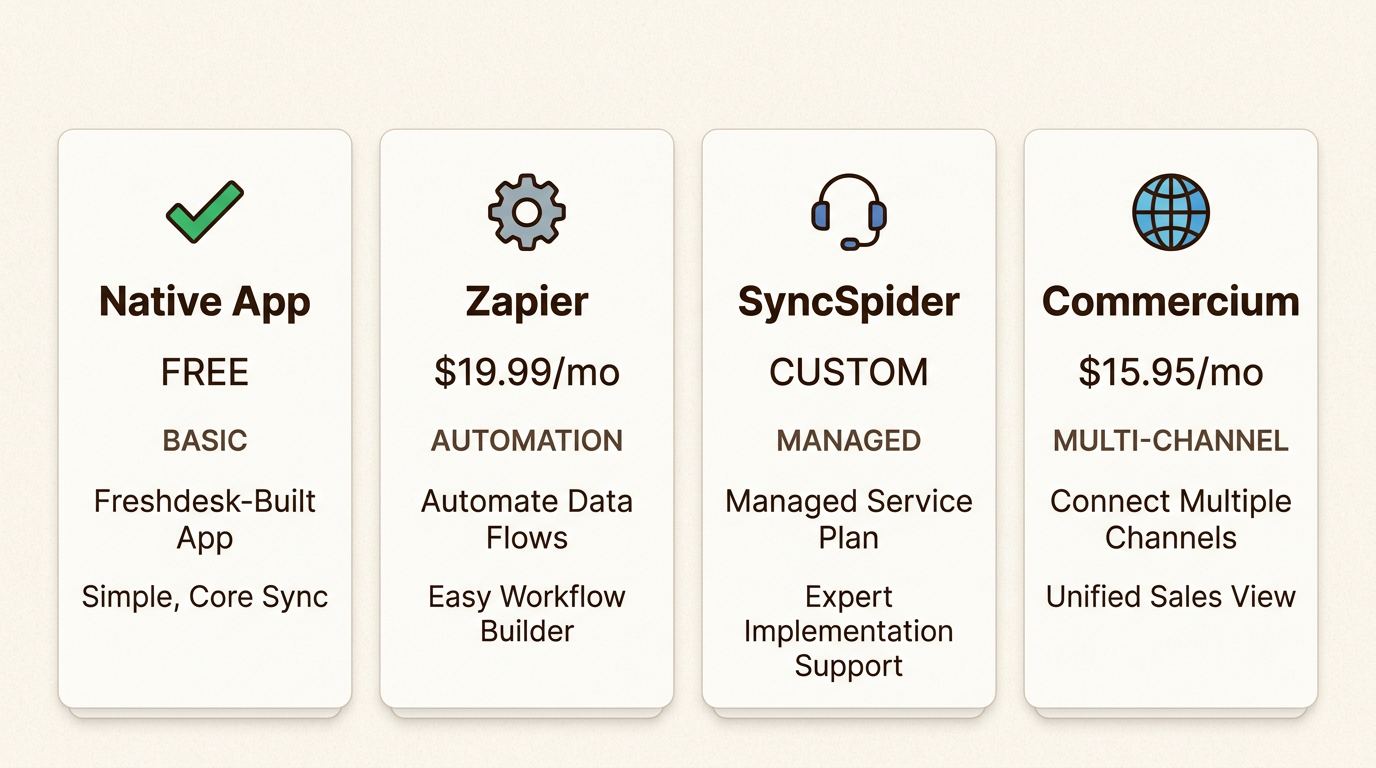
Zapier connects Freshdesk and Shopify with 50+ pre-built automation templates. Pricing starts at $19.99 per month for 750 tasks.

Zapier shines when you want automation beyond what the native app offers. For example, you can automatically create Freshdesk tickets when Shopify detects fraudulent orders, or notify your marketing team in Slack when a customer submits a support ticket after making a purchase.
The tradeoff is cost. Zapier charges based on task volume, so high-volume stores might find it expensive compared to the free native app.
SyncSpider
SyncSpider is a Freshworks preferred partner that offers fully managed integration services. Unlike self-service tools, SyncSpider handles the entire setup for you.
This is ideal if you have complex requirements or simply don't want to deal with technical setup. SyncSpider supports 400+ integrations beyond just Freshdesk and Shopify, so it's particularly valuable if you're running a multi-channel operation.
Pricing is custom, so you'll need to contact their sales team for a quote.
Commercium
Commercium is an e-commerce connector built specifically for online retailers. It starts at $15.95 per month for 200 messages.
Commercium goes deeper on order management than the native app. You can route, hold, modify, or split orders based on predefined rules. It also supports 200+ marketplaces beyond Shopify, making it a good fit if you sell on Amazon, eBay, or other channels alongside your Shopify store.
| Here's how the options compare: | Method | Pricing | Best For | Setup Complexity | Native Freshdesk App | Free (requires Freshdesk plan) |
|---|---|---|---|---|---|---|
| Most users | Medium | Zapier | From $19.99/month + task costs | Automation-heavy workflows | Low | SyncSpider |
| Custom pricing | Enterprise, managed service | Low (fully managed) | Commercium | From $15.95/month | Multi-channel sellers | Low |
Common Issues and Troubleshooting
Even with straightforward setup, things sometimes go wrong. Here's how to fix the most common problems:
Authentication errors. If Freshdesk can't connect to Shopify, your Client ID or Secret is likely incorrect. Go back to your Shopify Dev Dashboard, find your app, and copy the credentials again. Make sure you're not including any extra spaces.
Missing order data. If tickets show customer information but no orders, check that you enabled the read_orders scope in your Shopify custom app. You can verify this in Shopify under Settings > Apps > Develop apps > Your App Name > Configuration.
Can't cancel or refund orders. This means the write_orders scope isn't enabled. Note that you'll need to uninstall and reinstall the custom app in Shopify after changing API scopes for the changes to take effect.
Sync delays. The native app syncs in near real-time, but occasional delays happen. If data seems stale, try refreshing the ticket page. Persistent delays (over 10 minutes) usually indicate a connection issue that re-authenticating will fix.
When to contact support. For connection issues, start with Freshdesk support since they built the integration. For order data problems, Shopify support can verify your custom app is configured correctly.
Getting the Most from Your Integration
Once everything is connected, a few best practices will help you maximize the value:
Set up automated ticket assignment rules. Route Shopify-related tickets to agents trained on order management, or assign tickets from high-value customers to your senior team.
Create Shopify-specific canned responses. Templates for common questions like "Where's my order?" and "How do I return this?" save time and ensure consistent messaging.
Train your team on order management workflows. Make sure agents know they can cancel and refund orders directly from Freshdesk. Many teams underutilize this feature simply because they don't know it exists.
Monitor integration health monthly. Check that order data is appearing consistently and that your API credentials haven't expired. Shopify custom app credentials don't expire automatically, but it's good practice to verify everything is working.
Review permissions quarterly. If team members leave or change roles, make sure your Shopify custom app permissions still align with who needs access to what.
Consider Ringly for AI-Powered Phone Support
Freshdesk handles email and chat support beautifully. But what about phone calls? Many e-commerce businesses still get significant call volume, especially for complex issues or high-value orders.
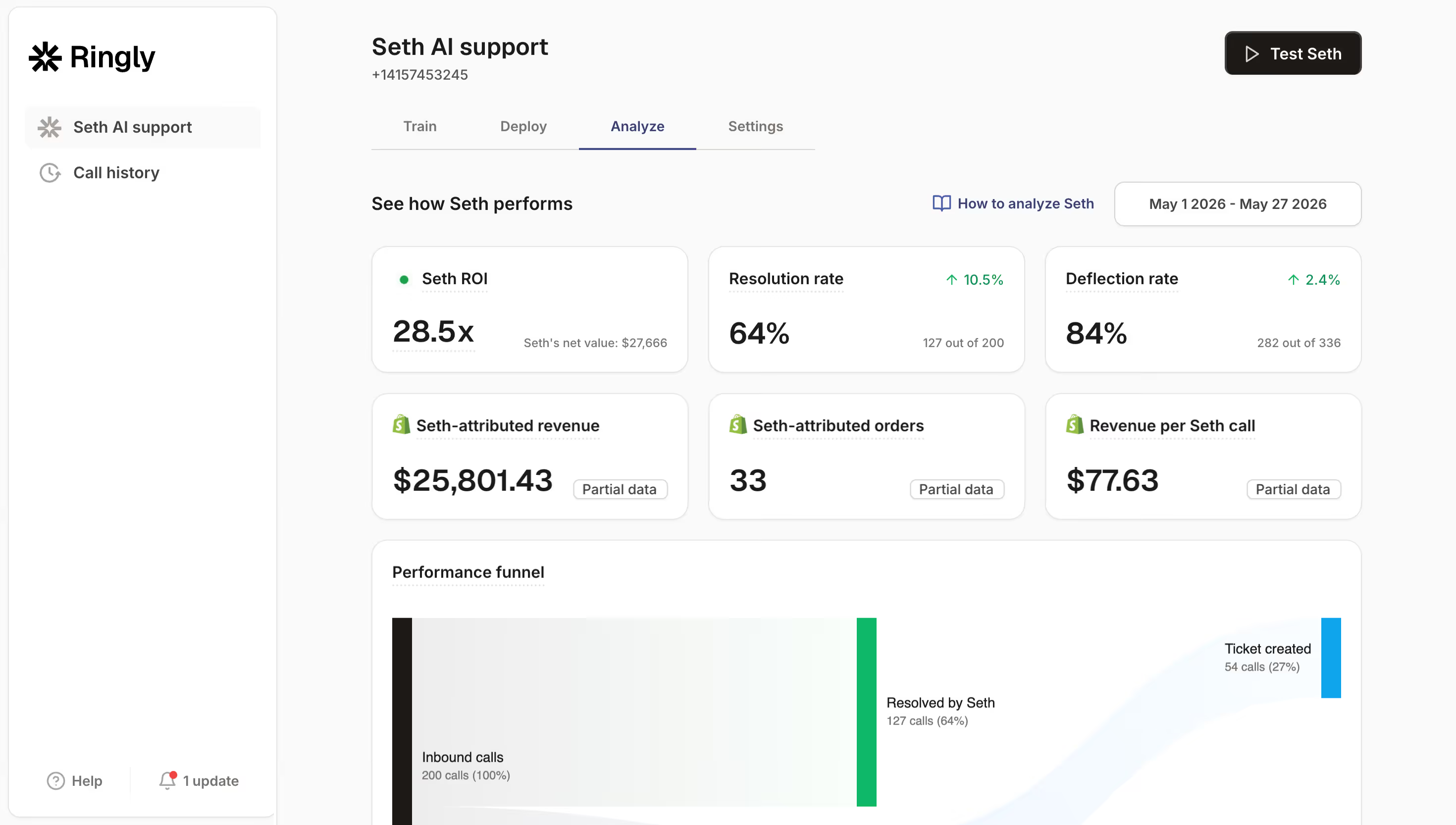
That's where we come in. At Ringly, our AI phone agent Seth integrates directly with Shopify to handle inbound calls 24/7. Seth can look up orders, process returns and exchanges, answer FAQs, and escalate complex issues to your team. The integration works similarly to Freshdesk. Seth pulls order data from Shopify in real-time, so callers get accurate information without waiting.
Our customers see about 73% of calls resolved without human intervention. For the calls that do need a human, Seth gathers context first so your team can jump in with full information.
If you're already investing in support automation with Freshdesk, adding AI phone support is a natural next step. You can start a free trial and see how it works with your Shopify store.
Frequently Asked Questions
Does the Freshdesk Shopify integration work with all Shopify plans?
Yes, the integration works with any Shopify plan including Basic, Grow, Advanced, and Plus. You just need the ability to create custom apps, which requires owner or staff permissions with app development access.
Why do I need to create a custom app for the Freshdesk Shopify integration now?
Shopify discontinued legacy custom app creation on January 1, 2026. All new integrations must use the Shopify Dev Dashboard to create custom apps. This change improves security but adds a few extra steps to the setup process.
Can I use the Freshdesk Shopify integration on the free Freshdesk plan?
The Shopify app itself is free to install, but you'll need at least the Growth plan ($19/agent/month) to access third-party app integrations. The free plan is limited to 2 agents for 6 months and doesn't include app marketplace access.
How quickly does order data sync between Shopify and Freshdesk?
The native integration syncs in near real-time. Most order data appears in Freshdesk within seconds of being created or updated in Shopify. Occasionally there may be delays of a few minutes during high-traffic periods.
Is the Freshdesk Shopify integration secure?
Yes. The integration uses OAuth authentication and Shopify's official API. Your data is encrypted in transit, and you control exactly what permissions the integration has through your custom app settings. You can revoke access at any time from your Shopify admin.