
How to set up Shopify Flow Slack alerts for VIP orders
By the end, every order over $250 or from a VIP customer gets tagged in Shopify and posted to your team's #support channel in Slack, as soon as it comes in.
- About 10 min
- Intermediate
- Checked

Ruben BoonzaaijerSteps checked against Shopify Flow help docs, Oct 2026. Screens are drawn.
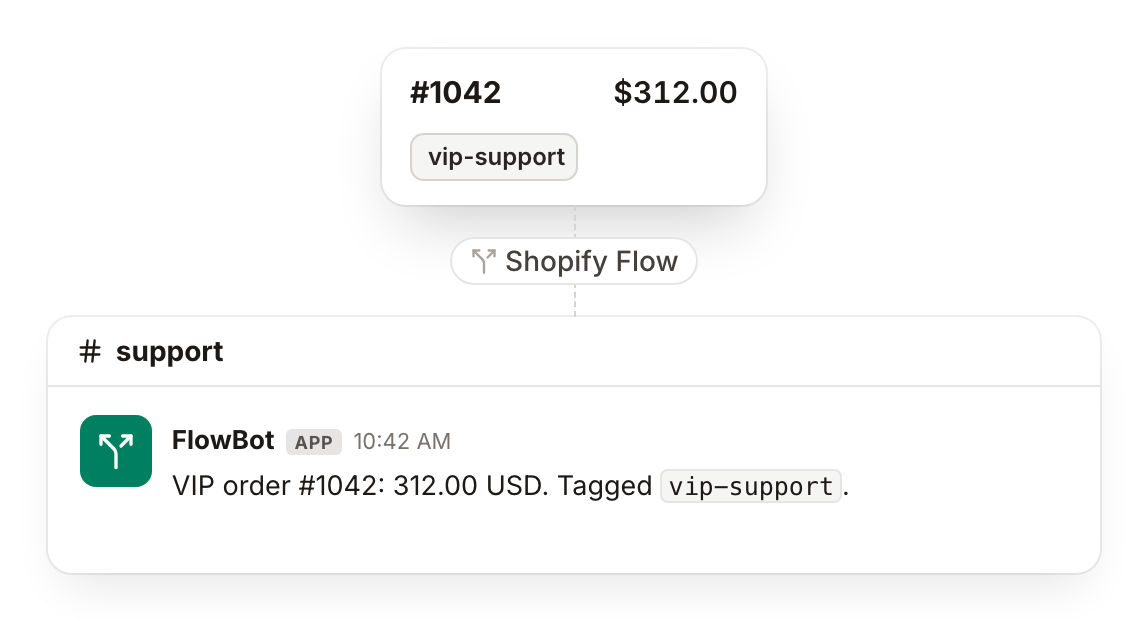
Nothing to buy. All three are free.
- Shopify store Basic, Grow, Advanced or Plus. You have this.
- Shopify Flow Free Shopify app. Install free
- Slack A #support channel, free plan works. Connect in step 5.
On a staff account and no Flow under Apps? Ask the store owner to give you access to the Flow app.
Step 1: Open Shopify Flow and create a workflow
- In your Shopify admin, go to Apps and open Flow. Not installed? Get it free from the Shopify App Store.
- Click Create workflow.
- Click the title, New workflow, and name it VIP order alert.
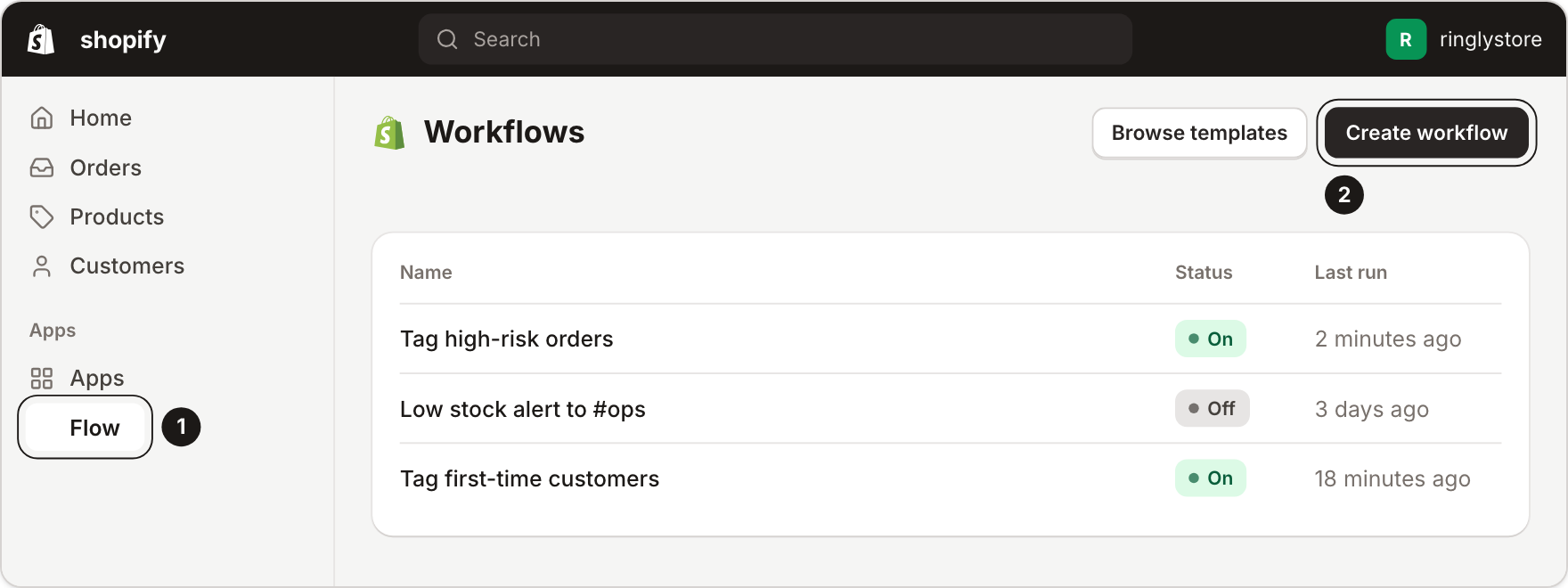
You should see an empty workflow with Select a trigger.
Step 2: Choose the trigger
- Click Select a trigger.
- Search for Order created and select it.
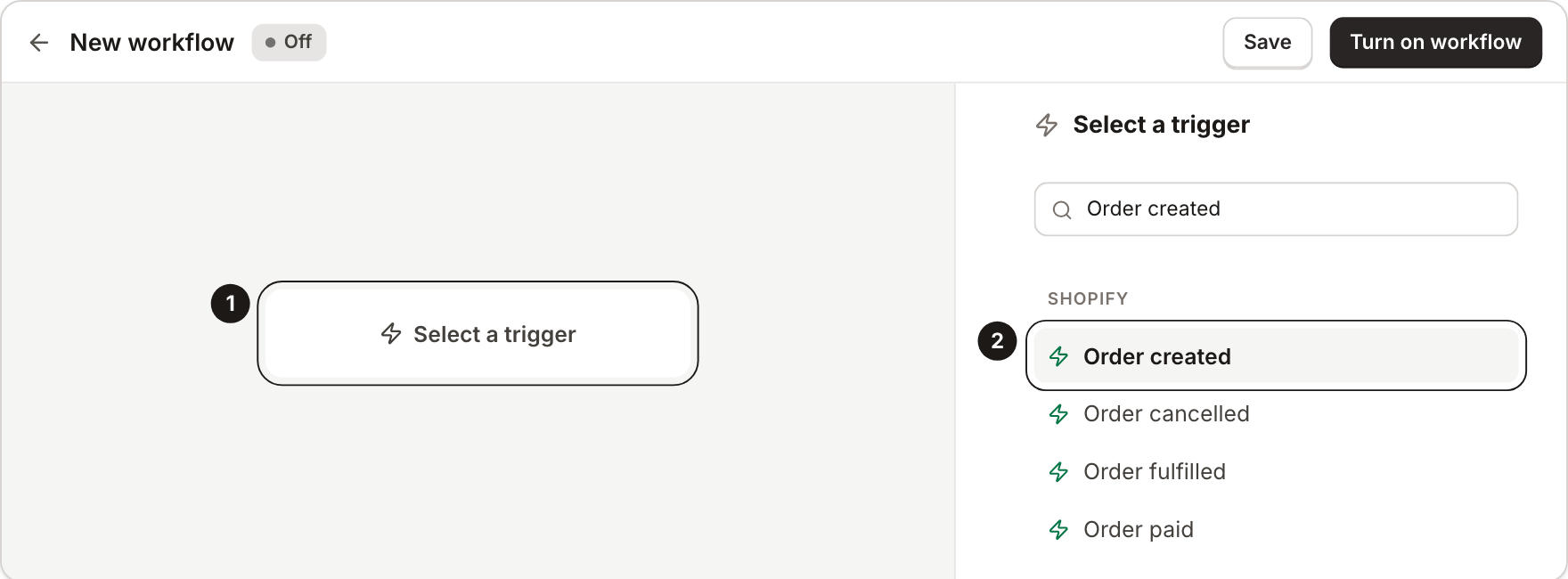
You should see Order created as the first block.
Note: this trigger fires when an order is placed, and when a draft order is marked as paid. You use the second one to test in step 6.
Step 3: Add the condition
- Click the + under the trigger and choose Condition.
- Pick the order total, totalPriceSet.shopMoney.amount. Set it to Greater than and type 250.
- Add a second criterion: customer.tags, At least one of, VIP.
- Set the operator between the two criteria to OR.
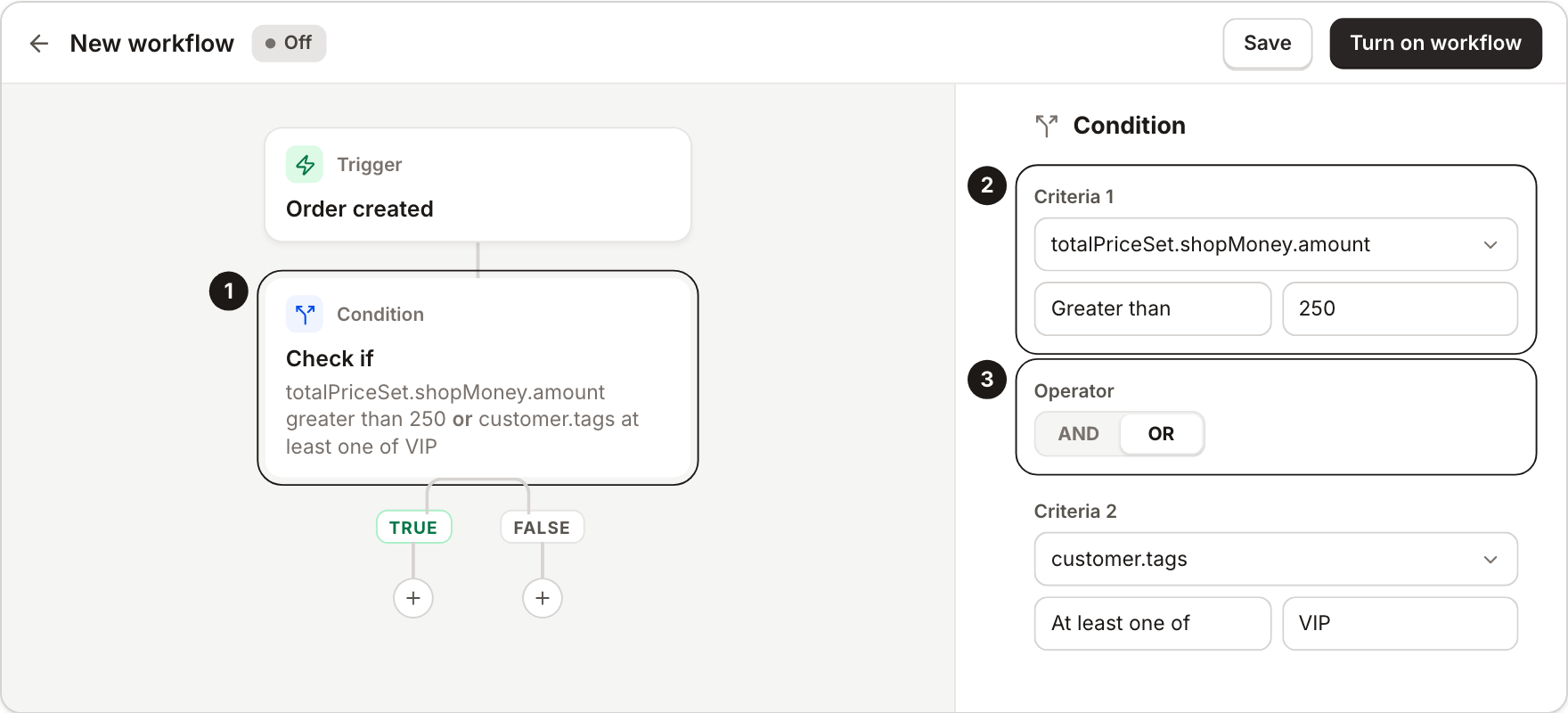
You should see a True and a False path under the condition.
Note: Flow shows fields by their technical names, so search for totalPriceSet if you cannot find the total. The amount is in your store currency. Guest checkouts have no customer, so only the price check can match them.
Step 4: Tag the order
- On the True path, click + and choose Action.
- Pick Add order tags, type vip-support and press Enter.
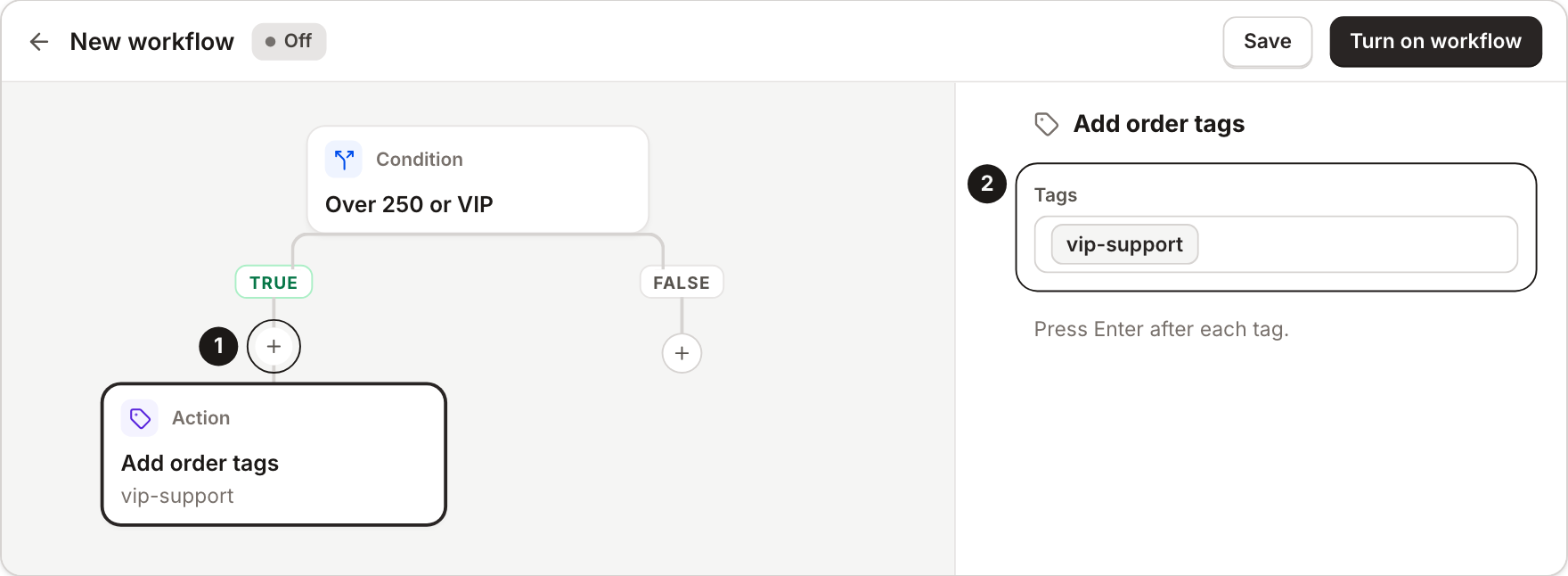
You should see Add order tags on the True path.
Tip: Gorgias can show order tags in its Shopify widget once you add the tags field, so your agents see vip-support next to the ticket.
Step 5: Send the Slack alert
- Click + under Add order tags, choose Action, then Send Slack message.
- Connect Slack when Flow asks, and log in to your workspace.
- In Slack, add FlowBot to #support: open the channel details, then Integrations, Add an app, FlowBot. Typing @flowbot in the channel works too.
- Back in Flow, type #support in Channel or member id.
- Paste this as the message:
VIP order {{ order.name }}: {{ order.totalPriceSet.shopMoney.amount }} {{ order.totalPriceSet.shopMoney.currencyCode }}. Tagged vip-support. - Optional: add a link to the order on a new line. Replace YOUR-STORE with the name in your admin web address:
<https://admin.shopify.com/store/YOUR-STORE/orders/{{ order.legacyResourceId }}|Open order>
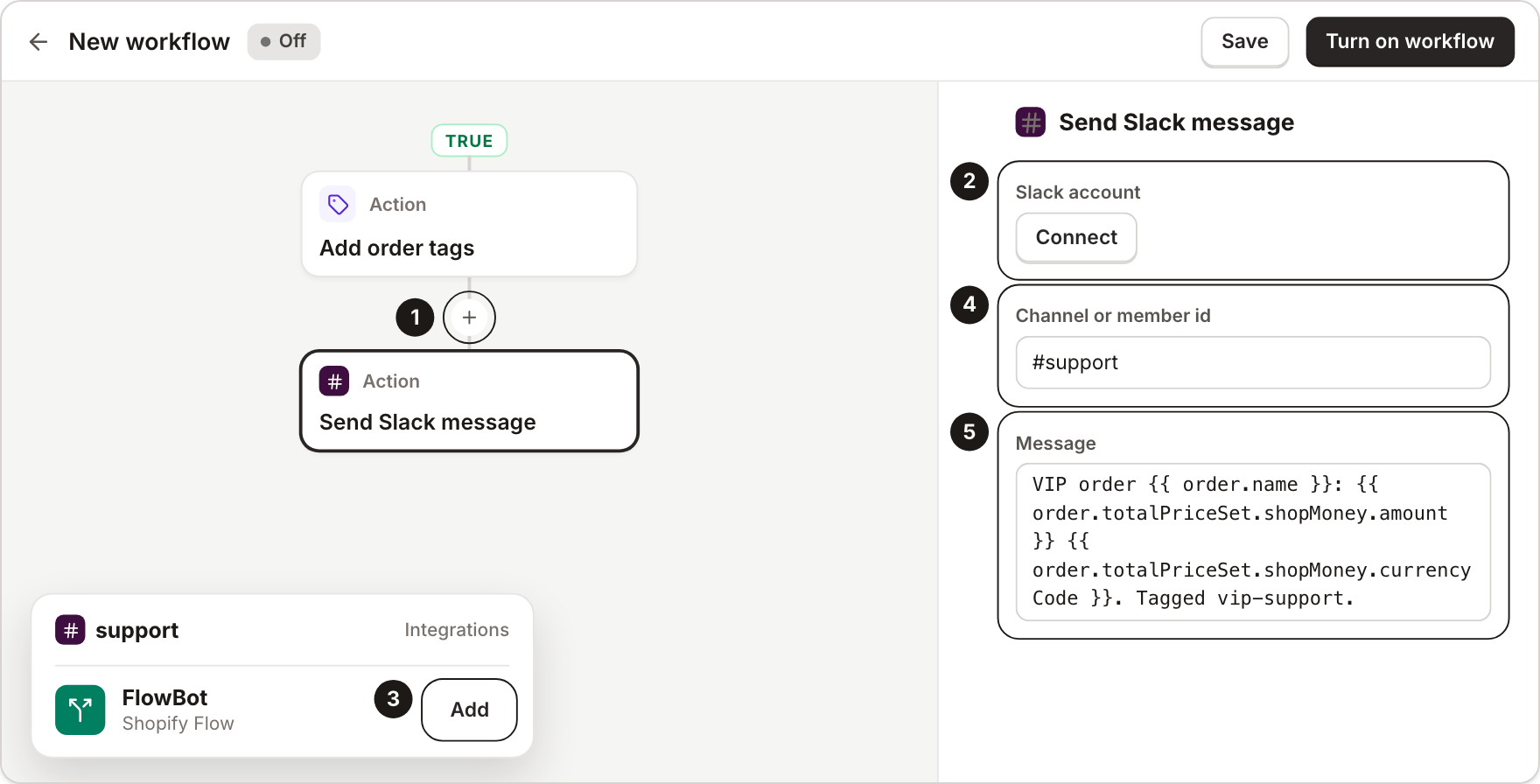
You should see Send Slack message under Add order tags.
Note: do not type a # before {{ order.name }}. The order name already starts with one.
Step 6: Turn it on and test
- Click Turn on workflow in the top right.
- Make a test order over 250: go to Orders, then Drafts, and create an order. Add products worth more than 250.
- Click Collect payment, then Mark as paid.
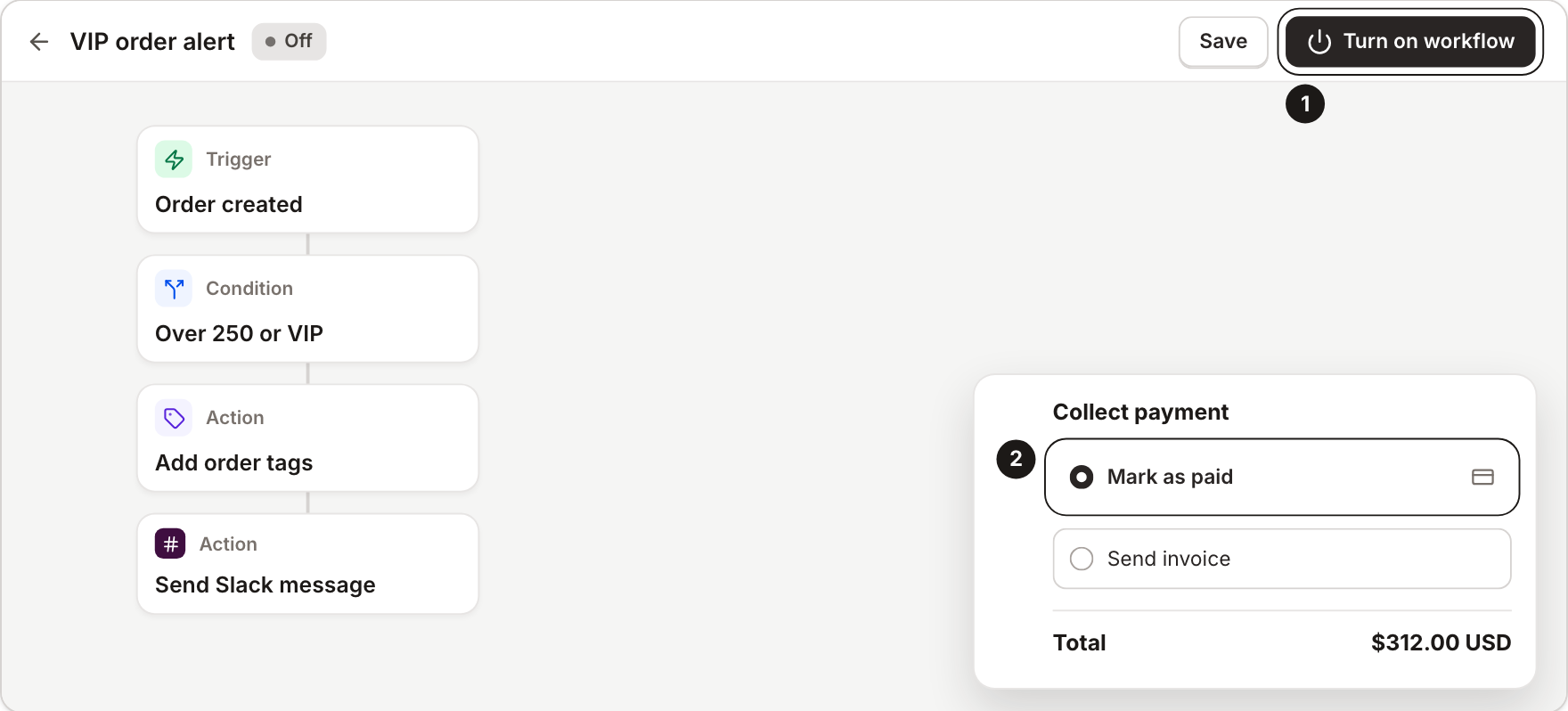
You should see the vip-support tag on the order and the message in #support. Not there? Open Apps, Flow, Recent runs and click the run to see what happened.

Careful: this now runs on real orders. Every new order from this moment goes through the workflow. Cancel the test order when you are done.
The workflow ran but nothing showed up in Slack
FlowBot is probably not in the channel. Add it (step 5), then open Apps, Flow, Recent runs and click the run to see the error.
Slack says the channel was not found
Use the channel ID instead of the name. In Slack, open the channel details and copy the channel ID at the bottom. Type it in Flow with a $ in front, like $C0123ABCD. FlowBot still has to be in the channel.
I clicked Test your workflow and no message came
That is expected. A workflow test never sends messages or changes orders. Test with a draft order marked as paid (step 6).
Older orders have no tag
Flow only runs on orders placed after you turn it on. For an older order, open it and click More actions, Run Flow automation.
An order from a VIP customer did not match
Check that the customer really has the VIP tag. Guest checkouts have no customer, so the tag check stays empty for them.
The tag disappeared from the order
Another app probably edited the order at the same moment. Add a Wait step before Add order tags.
Can my helpdesk see the tag?
Gorgias can, once you add the tags field to its Shopify widget. For other helpdesks, check whether they show Shopify order tags.
Can I use this for repeat customers?
Yes. Change the condition to customer.numberOfOrders greater than 1. The count includes the order that just came in.