

This post in 30 seconds.
- The mechanics are easy. Orders, click the order, click Refund. Full or partial, original payment or store credit, restock or not, shipping or not. We cover every option with the exact admin steps.
- The real cost shows up later. Every refund spawns a "where's my refund?" call a few days after you issue it, because the money posts to the customer's bank long after Shopify says it's done.
- Built for $10M-$100M Shopify brands with a visible phone number and a CS team already handling order-status and returns calls all day.
Issuing a refund in Shopify takes about three clicks. The part that costs you comes four days later, when the customer checks their bank statement, sees nothing, and calls the phone number on your site asking where their money went.
If you run a $30M Shopify brand and your CS team is already drowning in order-status and returns calls, refunds quietly add a whole second wave of them. So this guide does two things. First, the exact admin steps for every kind of refund on a one-time order: full, partial, store credit, no-restock, shipping. Then the part the other guides skip: how to stop the status call that every refund creates. (For subscription refunds, that's a different flow with its own gotchas, covered in our subscription refund guide.)
Most refund guides stop at the click path. We run AI phone support for Shopify brands, so we see the part that happens after the click: the same "where is my refund" question, over and over, landing on a CS team that didn't cause it. Book a 30-min call and we'll talk through what your post-refund call volume actually looks like.
In this post:
- How to process a full refund
- How to issue a partial refund
- Original payment vs store credit
- Refunding without restocking, and refunding shipping
- When the customer actually sees the refund
- How to cut "where's my refund?" calls
- Five refund mistakes that create extra calls
- What this costs vs Ringly
- Frequently asked questions
How to process a full refund in Shopify
A full refund returns the entire order total to the customer, items plus any tax and shipping you choose to give back. It's the right move when an order is cancelled before fulfillment, when the whole order comes back in returnable condition, or when you've decided the fastest way to keep a customer is to make them whole. Here's the path from your admin.
- Go to Orders and click the order you want to refund.
- In the order, click Refund.
- Leave the quantity set to the full amount for every line item you're returning.
- Pick a refund method: original payment, store credit, or both.
- Decide on restocking (more on that below) and whether to notify the customer.
- Click Refund.
The order status flips to Refunded and, if you left the notification box checked, Shopify emails the customer a refund confirmation. If you want that email to actually answer the timing question (and head off a call), our refund email generator drafts one fast. Refunding is the one order action you can't take back, so the moment you click Refund, treat it as final. There's no undo button. If you refund the wrong order, your only recovery is to create a draft order and collect payment again, which means asking a customer to pay you twice. Not a fun call.
On mobile it's the same flow: open the Shopify app, tap Orders, open the order, tap the "..." menu, then Refund.
One thing worth knowing before you start clicking: Shopify Payments doesn't return your credit card processing fees on a refund, per the Shopify Payments refunds docs. On a full refund you give back the sale and eat the fee. That's a small line item per order, but it adds up across a return rate that runs 3 to 4 times higher online than in store.
How to issue a partial refund
A partial refund returns part of the order instead of all of it. You'd use it when a customer keeps most of their order but returns one item, when you're knocking money off for a damaged product the customer is keeping, or when you're issuing a price-adjustment after a sale. It's the most common refund type for established brands, and also the one that quietly costs the most over time.
Same starting path: Orders, click the order, click Refund. From there you have two ways to go partial.
- Refund specific items. Set the quantity to refund for the items coming back and leave the rest at 0. Anything at quantity 0 isn't refunded.
- Refund part of an item's price. Leave the quantity unchanged and edit the Amount to refund field directly. This is how you give a $15 goodwill credit on a $60 item the customer keeps.
The order status changes to Partially refunded. If the order was paid across multiple methods, like a card plus a gift card, Shopify suggests a split and refunds the gift card portion first. You can override the split manually, up to the available amount on each method.
Partial refunds are where margin quietly leaks, because you give the money back but Shopify keeps the original processing fee. Want to deduct a restocking fee? Shopify has no dedicated field for it. You edit the Amount to refund down by hand to whatever your policy says, then note the reason so your finance person isn't confused at month-end. If you don't have a written policy yet, our return policy generator is a fast way to draft one.
Original payment vs store credit
This is the choice that actually affects your cash, not just your clicks. Shopify lets you refund to the original payment method, to store credit, or split across both.
Refund to original payment method. The money goes back to the card, PayPal, or wallet the customer used. On Shopify's side the refund sits as Pending for up to two business days, then it's on its way to the customer's bank. This is the right call for a genuine "this didn't work out" return.
Refund to store credit. Instead of sending cash out the door, you issue a balance the customer can spend later. You control the exact amount and can set an expiration date. The revenue stays in your business, which is why a lot of brands offer a small store-credit bonus to nudge customers toward it. It works regardless of how the customer paid, so even a PayPal or gift-card order can be refunded as credit. The trade-off is goodwill: push store credit on a customer who genuinely wants their money back and you've traded a clean return for a complaint.
A quick rule of thumb:
- Choose original payment if the customer is unhappy, the product was defective, or forcing store credit would turn a refund into a Trustpilot complaint.
- Choose store credit if the customer is exchanging, the return is within policy, and you've made the credit feel like the better deal.
One gotcha to file away. Once you've issued a store-credit refund on an order, Shopify locks the original payment method on that refund screen. To later refund to the original payment, you need the "Over-refund orders previously refunded to store credit" permission and you have to explicitly allow over-refunding. Worth setting up before you need it, not during an angry call.
There's also a reporting angle most operators miss. Refunds show up in your Shopify finance reports as negative line items against the original order, which means a messy refund habit, partials with no notes, store credit issued by mistake, makes month-end reconciliation slower than it needs to be. A simple rule helps: always add a refund reason note, and pick the method deliberately rather than clicking through the default. Your finance person will thank you, and so will the rep who picks up the call about that order three weeks later.
Refunding without restocking, and refunding shipping
Two settings on the refund screen catch operators off guard. Both are easy once you know they're there.
Restocking. When you track inventory, Shopify checks "Restock items" by default on every refund. That's fine for clean returns. It's wrong for anything you don't want back in sellable stock.
- Deselect "Restock items" for damaged, defective, perishable, or hazmat goods, or anything you're telling the customer to keep.
- Heads up on unfulfilled items. If you refund a line item that was never fulfilled, Shopify removes it from the order, and it can't be fulfilled afterward.
Refunding shipping. Shipping is a separate section on the refund screen, not part of the item total.
- Open the Refund shipping section, select Shipping, and enter the amount. You can't refund more than the customer originally paid for shipping.
- You can't refund shipping at all if the order has an order-level free-shipping discount applied. The system blocks it, because there's no shipping charge to give back.
The restock and shipping toggles are where small refund errors turn into inventory and finance headaches, so slow down on these two before you click Refund. A wrong restock puts a damaged unit back into your sellable count. A wrong shipping refund eats margin you didn't mean to give.
When the customer actually sees the refund
Here's the timing that drives the calls. There are two clocks, and customers only feel the second one.
Clock one is Shopify's. After you click Refund, it shows as Pending for up to two business days while Shopify pushes the money out. On your dashboard, the refund looks basically done.
Clock two is the bank's. Once the refund leaves Shopify, it can take up to 10 business days for the customer's bank to actually post it to their account. Five to 10 business days is the normal range. Weekends and holidays stretch it, and you have zero control over it, because it's the issuing bank's processing speed, not yours. Some banks show the pending credit within a day; others sit on it for the full window.
So there's a multi-day stretch where you've marked the refund complete and the customer still sees nothing. That gap is the whole problem. The customer isn't wrong to wonder, and you're not wrong to say it's done. You're both looking at different clocks.
When a customer truly can't find a refund that's been issued, the fix is the Acquirer Reference Number (ARN). It's a tracing number you can pull and hand to the customer so their bank can locate the specific transaction. Most CS reps don't know it exists, which is why a "where's my refund" call that should take 90 seconds turns into a 10-minute hunt.
It helps to picture the customer's side of this. They returned a product, they got an email saying the refund was processed, and now they're three days in with no money showing. From where they sit, "processed" should mean "in my account." They don't know there's a second clock at their bank. So they do the reasonable thing and call the number on your site. Multiply that by your monthly refund count and a return rate that runs 3 to 4 times higher online, and the status call becomes a standing line item on your CS team's day.
How to cut "where's my refund?" calls
Now the part the other guides skip. Every refund you issue is a future phone call, and you can predict almost exactly when it lands.
I'm Ruben, co-founder of Ringly. Across the Shopify brands we run phone support for, the "where's my refund?" call almost always shows up 3 to 5 business days after the refund is issued. That's the exact window from above: Shopify has marked it done, the bank hasn't posted it, and the customer is staring at a statement that doesn't match what your email said. Nobody in the SERP connects refund timing to the call spike, but on a real call log it's the clearest pattern there is.
There are three ways to flatten that spike.
- Set the expectation at refund time. Don't just send "your refund is processed." Send the real window: "you'll see this back on your card within 5 to 10 business days." When the email matches reality, half the calls never happen.
- Make status self-serve. A tracking page or an order-status lookup that shows refund state means the curious customer checks before they dial. This is the same playbook that works for WISMO calls and order tracking generally, and it's the heart of WISMO automation on Shopify.
- Answer the phone with the actual data. When the call does come in, the rep, or the AI, should already see the refund date, the method, the expected window, and the ARN if needed. No hold, no hunting.
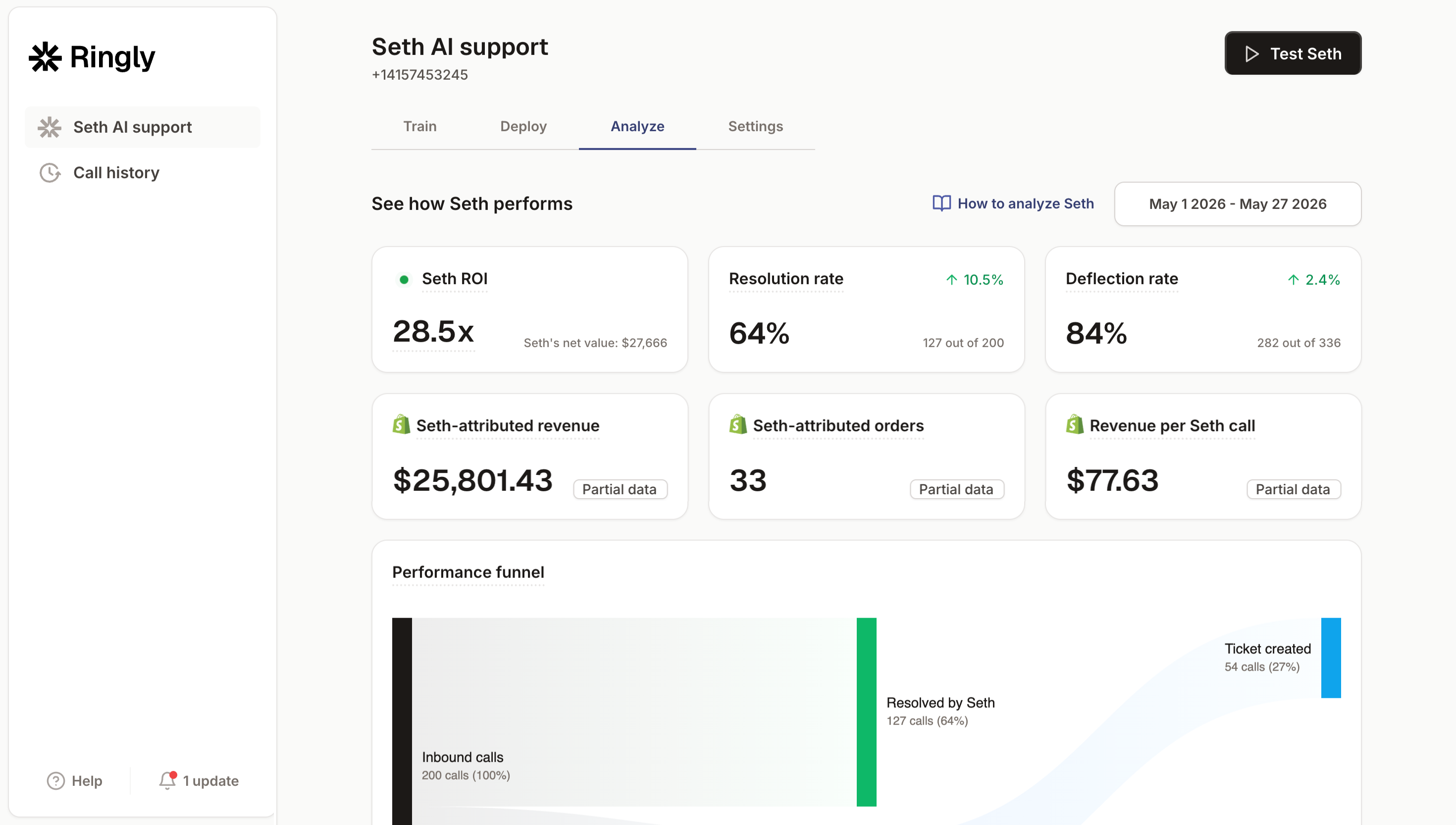
That last one is where Ringly fits. Ringly is AI phone support for Shopify brands. The AI answers inbound calls 24/7, reads your live Shopify order and refund state, and tells the customer exactly when their refund was issued and when to expect it on their statement, ARN included if they need to chase their bank. It pulls the same refund policy you've written into its knowledge base, so the answer it gives matches your actual policy, not a generic script. Calls that genuinely need a person escalate cleanly to Gorgias, Zendesk, or whatever helpdesk you already run. Seth resolves up to 90% of calls on its own.
WashCo, a Shopify brand we launched recently, generated $22,664 in attributed revenue in its first 7 days post-launch, handling 271 calls at 85% deflection and $0.91 per call versus $2.70 for a human-handled one. Refund-status and order-status calls are exactly the kind of repeatable volume that math comes from.
"My customers also feel like it's a normal person. They feel like they can communicate if they have questions."
— Claudia Droge, TechCraft Studio
TechCraft Studio runs Ringly and handles 88% of its calls without a human. Read more on the returns and refund call pattern if you want the full breakdown of which calls show up after a return.
Five refund mistakes that create extra calls
The mechanics are simple, but a handful of small habits turn one refund into two or three calls. Here are the ones we see most on real call logs.
- Sending a vague refund email. "Your refund has been processed" with no timeline is an invitation to call. Name the 5-to-10-business-day window every time.
- Refunding to store credit when the customer wanted cash. This is the fastest way to turn a quiet return into a public complaint. Match the method to the situation, not to your cash-flow preference.
- Forgetting to deselect restock on a damaged item. A defective unit goes back into your sellable count, sells again, and comes back as a second angry call. Check the box state before every refund.
- Not knowing the ARN exists. When a customer swears the refund never arrived, the ARN ends the call in two minutes. Without it, the rep guesses and the customer calls back.
- Treating refunds as a finance task, not a support one. The refund is the easy half. The follow-up question is the half that hits your phone line, so plan for the support side before the volume shows up.
Most refund "problems" aren't refund problems at all, they're communication problems that surface as phone calls 3 to 5 days later. Fix the communication and the call volume drops on its own.
What this costs you, and what it costs with Ringly
Put numbers on it. Take a typical $50M Shopify brand running a 6-rep CS team.
| Line item | Today | With Ringly |
|---|---|---|
| 6 reps × $4K loaded per rep | $24,000/mo | — |
| Ringly (~$5K/mo) | — | $5,000/mo |
| Net monthly CS spend | $24,000/mo | $5,000/mo |
| Monthly savings | — | $19,000/mo |
| Annual savings | — | $228,000/yr |
That's roughly 70% of repeatable calls, order status, returns, refund status, the same five questions over and over, routed to the AI. The other 30%, the genuinely tricky ones, still go to your CS team, who now have the time to actually solve them instead of reading ARNs off a screen all day. It's the same shift that's reshaping ecommerce customer service at scale, and it's why Shopify Plus customer service teams are moving routine phone volume to AI first.
If a chunk of your phone volume is people asking where a refund went, book a 30-min call and we'll run the math on your store live.
Frequently asked questions
How do I refund an order in Shopify? Go to Orders, click the order, and click Refund. Set the quantity, choose original payment or store credit, decide on restocking, and click Refund. The order status changes to Refunded.
How do I do a partial refund on Shopify? Open the order and click Refund, then either set the quantity for only the items coming back or edit the Amount to refund field to give back part of an item's price. The status becomes Partially refunded, and you can split the refund across multiple payment methods.
Can I refund to store credit instead of the original payment method? Yes. On the refund screen, choose store credit as the method, set the amount, and optionally add an expiration date. It works regardless of how the customer originally paid, and the revenue stays in your business.
How long does a Shopify refund take to reach the customer? Shopify marks the refund Pending for up to two business days, then it can take up to 10 business days for the customer's bank to post it. Five to 10 business days is the normal range, which is why customers often call before it lands.
Does Shopify refund my payment processing fees? No. Shopify Payments does not return your credit card processing fees on a refund, so you eat the original fee even on a full refund. This is part of why partial refunds quietly erode margin.
How do I refund without restocking the item? On the refund screen, deselect the "Restock items" checkbox before you click Refund. Use this for damaged, defective, perishable, or hazmat goods you don't want back in sellable inventory.
Can I reverse a refund in Shopify? No. Once you initiate a refund, you can't cancel or reverse it. The only recovery is to create a draft order and collect payment again, which means asking the customer to pay a second time.
How do I stop customers calling to ask where their refund is? Set the real expectation in the refund email (5 to 10 business days), give customers a self-serve way to check status, and make sure whoever answers the phone can see the live refund date and ARN. Brands on Ringly route these status calls to an AI that reads Shopify in real time, which is how they resolve up to 90% of calls without a human.
Talk to us

If you run a $10M-$100M Shopify brand and a real slice of your phone volume is people asking where a refund went, a 30-min call is the fastest way to see what that's actually costing you and how much of it is automatable.
Our 3 promises.
- Live in under 1 hour. Setup and test calls are free.
- 30-day money back on the $99 plan fee.
- 65% resolution guarantee: if Seth resolves under 65% of your support calls in a month, that month comes back as credit (after 90 days on Pay per call).
Ruben (Ringly co-founder) takes these calls personally.